
Free Software Download Center
Software for industrial data collection, monitoring, and analysis.
DATA DESCRIPTIONS • SCREEN AREA • LIVE CHART • FULL-SCREEN MONITORING
The EOS SCADA Chart Panel not only allows data to be monitored on charts, but also enables the chart workspace to be arranged according to user requirements. Data in the tree menu can be made easier to understand using data descriptions, while collapsible dividers can be used to close unused sections and create a larger monitoring area for the live chart.
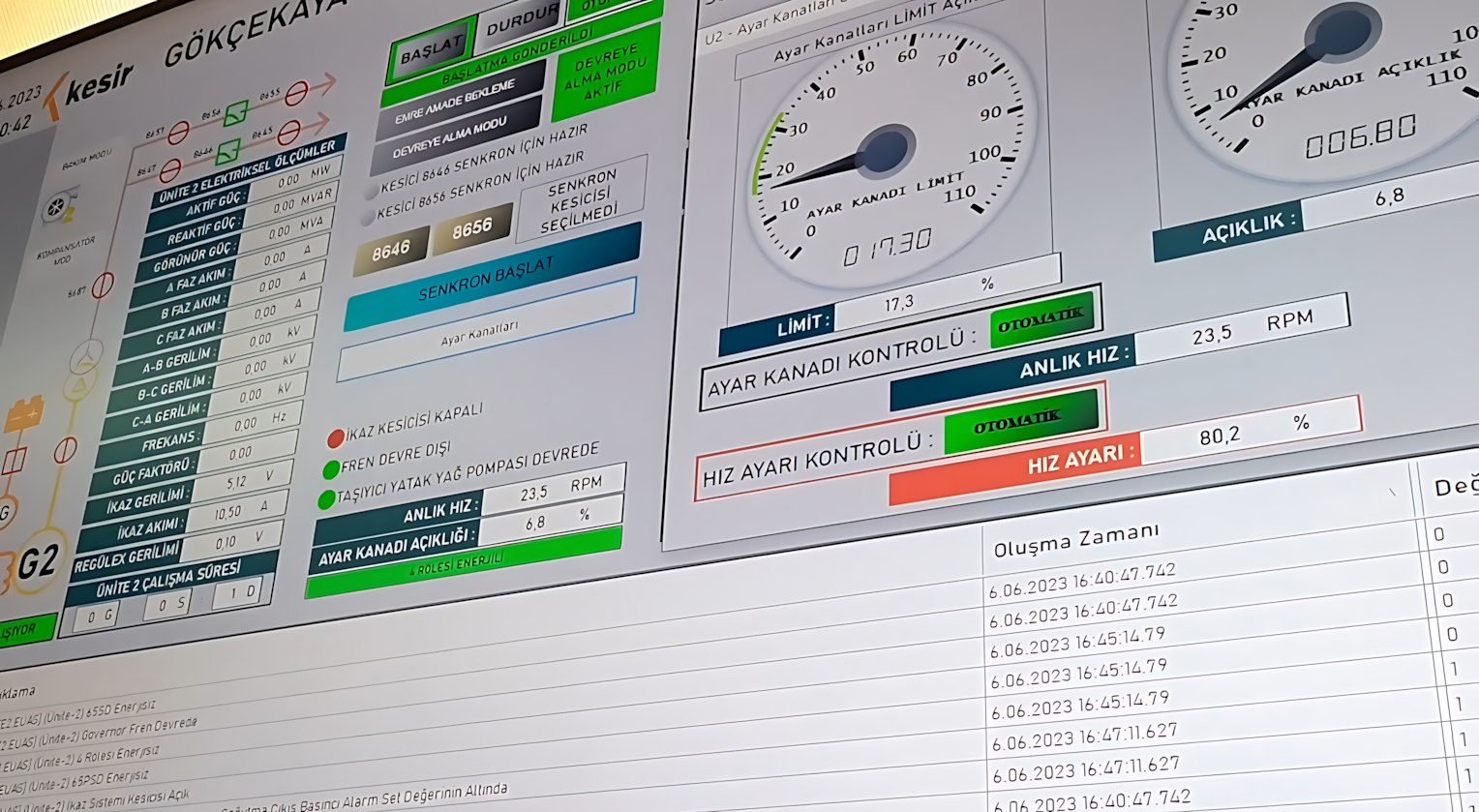
The tree menu in the EOS Chart Panel, where data is listed, allows users to select and manage a large number of SCADA data points within an organized structure. Especially in projects containing many process data points or data with similar names, displaying only the data name can make it difficult to understand which process value each data point represents.
In such cases, displaying data descriptions helps make the data in the tree structure easier to understand. Users can therefore consider not only the technical data name but also the description of the relevant data when creating a chart.
To display data descriptions in the tree structure, perform the following steps:
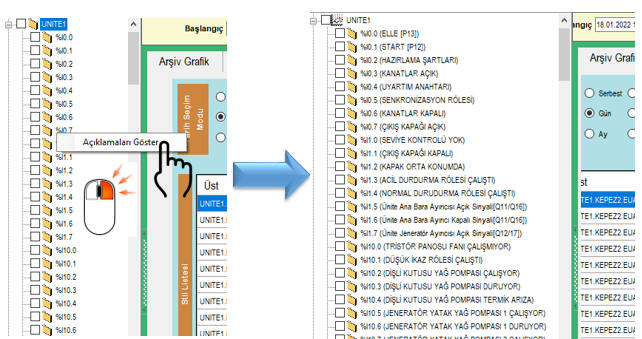
After displaying the descriptions, the user can return the tree structure to its previous appearance through the same Status Menu. This allows the user to switch back to a simplified tree view displaying only the necessary data information when less screen space is required.
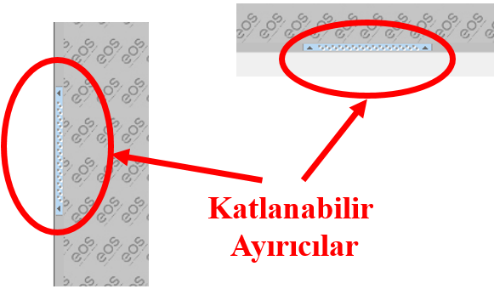
The collapsible dividers in the EOS Chart Panel allow the screen layout to be arranged according to the user's needs. Sections that are unused or not currently required can be temporarily collapsed, expanding the available chart workspace.
This feature is particularly useful during live chart monitoring. By collapsing sections that are not required for the chart, the user can allocate a larger portion of the screen to live trend charts. This allows the charts to be monitored over a larger area and makes it easier to follow operating values.
By collapsing unused sections in the chart panel with collapsible dividers, the area used to display live charts can be expanded as much as possible. This structure is particularly useful in applications where the operator needs to monitor process changes displayed on the chart over extended periods.
Users can arrange the screen according to their operational needs and leave only the required sections open. This reduces unnecessary visual clutter in the chart area and allows the user to focus on monitoring live trends.
With the screen layout flexibility provided by collapsible dividers, users can configure the Chart Panel as a full-screen live chart monitoring environment. By closing unused sections, the chart area can be expanded as much as possible, allowing the user to focus exclusively on live data and trend charts.
This live chart monitoring environment can be used as a fixed monitoring screen on any SCADA monitor used in the plant. This makes it possible to create a simple and spacious chart screen that brings the data required by the operator to the foreground when specific process values need to be monitored continuously.
Although these two features serve different purposes, using them together increases the flexibility of the Chart Panel. Data descriptions make it easier to locate and select the correct SCADA data, while collapsible dividers provide a larger workspace for monitoring the selected data on the chart.
| Feature | Main Function | Benefit |
|---|---|---|
| Data Descriptions | Display data descriptions in the tree menu | Easier identification and selection of the correct data |
| Collapsible Dividers | Temporarily collapse unused screen sections | Expand the chart workspace |
| Full-Screen Live Chart | Focus the chart area on live trend monitoring | Create a simple and continuous monitoring environment on a SCADA monitor |
| Operation | Result |
|---|---|
| Right-click the tree menu | The Status Menu opens |
| SHOW DESCRIPTIONS | Data descriptions are displayed in the tree structure |
| Change the view using the same method | The tree structure returns to a simpler view |
| Use collapsible dividers | Unused sections are collapsed and the chart area is expanded |
| Full-screen live chart layout | A continuous live trend monitoring environment is created on the SCADA monitor |
Free Software Download Center
Software for industrial data collection, monitoring, and analysis.

Technical Support
Software documentation, sample code, and practical technical information.
You can contact us regarding EOS software, technical documentation, or industrial data communication.