
Free Software Download Center
Software for industrial data collection, monitoring, and analysis.
CHART DATA • TABLE VIEW • NUMERICAL ANALYSIS • CSV EXPORT
The EOS SCADA Chart Panel Data Warehouse allows the numerical data underlying a created chart to be reviewed in tabular form, independently of the graphical representation. This allows users not only to visually monitor trends in the chart, but also to verify the numerical values that form the basis of the chart.
The table displayed through the Data Warehouse contains the data associated with the currently created chart. Users can review this data and export it using the SAVE AS CSV function for further evaluation in other applications.
After creating a chart, numerical data related to the chart can be accessed by clicking the DATA WAREHOUSE tab located at the top of the chart display area.
Key Relationship: The Data Warehouse is not a separate data creation screen. It provides a tabular view of the numerical data underlying the chart currently displayed in the Chart Panel.
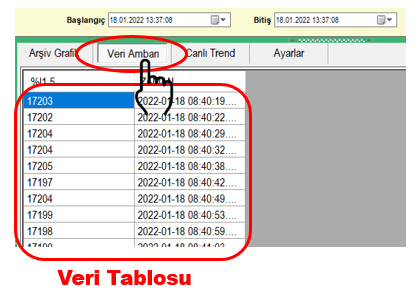 Under the DATA WAREHOUSE tab, the numerical data
values associated with the current chart are displayed in table format.
While the chart view makes it possible to quickly understand changes
in process values over time, the table view allows the same information
to be examined in greater numerical detail.
Under the DATA WAREHOUSE tab, the numerical data
values associated with the current chart are displayed in table format.
While the chart view makes it possible to quickly understand changes
in process values over time, the table view allows the same information
to be examined in greater numerical detail.
| View | Information Provided | Purpose |
|---|---|---|
| Chart | The visual change and trend of data over time. | Quick evaluation of overall trends and changes. |
| Data Warehouse | The numerical data values that form the chart. | Detailed examination and export of values in tabular form. |
Therefore, the Data Warehouse can be considered a complementary view that supports the numerical verification and data analysis stage of chart analysis.
The table displayed in the Data Warehouse can be exported as a text-based file using the SAVE AS CSV button. This allows chart data to be converted from information displayed only within the EOS Chart Panel into a data file that can also be used by the user in other applications.
Purpose of CSV Usage: Exported data can be used for spreadsheet-based analysis, reporting, archiving, or further evaluation in different software.
One of the most effective ways to examine data in the Chart Panel is to evaluate the chart view and the Data Warehouse view together. The chart quickly reveals the behavior and trend of the data, while the Data Warehouse allows the numerical values behind the same chart to be examined in detail.
Recommended Analysis Approach:
This approach combines visual trend analysis with numerical data examination and helps provide a more comprehensive evaluation of SCADA data.
The Data Warehouse is a complementary workspace that allows the numerical data associated with a chart created in the EOS SCADA Chart Panel to be examined in tabular form. Through this tab, users can evaluate chart data numerically and independently of the visual trend.
With the SAVE AS CSV feature, data displayed in tabular form can be exported. This means that the EOS Chart Panel functions not only as a graphical monitoring tool but also as a practical analysis environment for examining SCADA data and exporting it for use in different environments.
Free Software Download Center
Software for industrial data collection, monitoring, and analysis.

Technical Support
Software documentation, sample code, and practical technical information.
You can contact us regarding EOS software, technical documentation, or industrial data communication.