
Free Software Download Center
Software for industrial data collection, monitoring, and analysis.
EOS SCADA Runtime User Interface and MDI Window Structure
When a project is opened in EOS SCADA Runtime, the user is presented with a user interface designed to facilitate operational use.
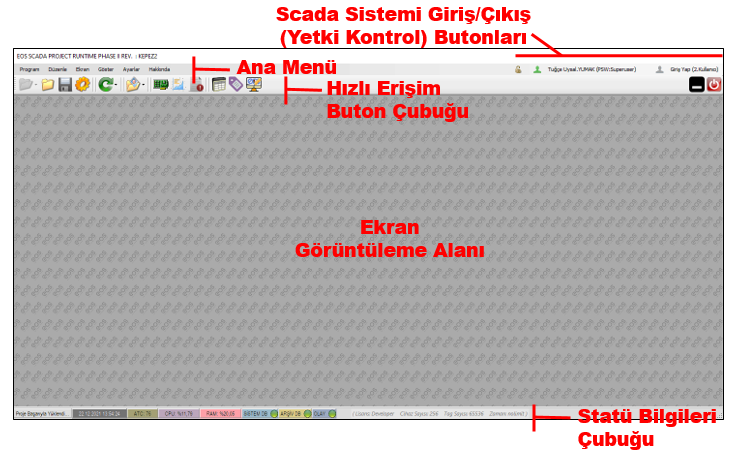
The Runtime layout brings together the main menu, quick access buttons, user login and logout controls, SCADA screens and tool panels, along with the status bar that displays system status information, as an integrated user interface.
The EOS SCADA Runtime user interface is composed of different sections arranged in a specific layout, with each section serving a different purpose. This structure is designed to provide quick access to the essential functions required by the user when monitoring and managing the SCADA system.
| Location | Component | Main Function |
|---|---|---|
| Top section | Main Menu | Provides access to the main commands and functions available in Runtime. |
| Below the Main Menu | Quick Access / Menu Buttons | Provides faster access to frequently used operations. |
| Upper-right corner | Login / Logout Area | Provides access to SCADA system user login and logout operations. |
| Central section | SCADA Screens and Tool Panels | The main workspace where SCADA screens and tool panels are displayed. |
| Bottom section | Status Bar | Displays various software and system status information and messages. |
The Main Menu is located at the top of the Runtime window. It is one of the main user interface components providing access to various operations and functions available in EOS SCADA Runtime.
Depending on the operation to be performed, the required commands can be accessed through the relevant menu options. The user's authorization level may also determine which functions are accessible.
The Main Menu is located at the top of the Runtime window and serves as a central control point for accessing the application's main functions.
Immediately below the Main Menu, menu buttons and quick access controls are provided for faster access to frequently used operations.
This structure allows users to directly use the relevant button instead of repeatedly searching for specific operations within the Main Menu.
This makes frequently used functions, particularly during operation and monitoring, easier to access and enables more efficient use of the user interface.
The upper-right corner of the Runtime window contains the area used for SCADA system user login and logout (Login / Logout) operations.
Authorized users can log in through this area and access Runtime functions according to their authorization level.
When the user completes their work session, they can also log out of the system through this area.
Functions available in EOS SCADA Runtime are controlled according to user authorization. Therefore, the user login and logout area is one of the fundamental components of secure Runtime operation.
The central section of the Runtime window is the user's primary workspace. SCADA screens and various tool panels are displayed within this area.
The visual screens required by the user while monitoring and managing the SCADA system are opened within this workspace.
The central section of the Runtime interface is the primary workspace where SCADA screens are displayed and multiple windows can be managed.
Window management in this area is performed through the Multiple Document Interface (MDI) structure used by EOS SCADA Runtime.
The Status Bar is located at the bottom of the Runtime window. This section is used to communicate various software and system status information and messages to the user.
This allows users to monitor the Runtime operating status and other system information through a separate area outside the main workspace.
The Status Bar is designed to display various system and software status information and messages to the user within the Runtime operating environment.
EOS SCADA Runtime uses a Multiple Document Interface (MDI - Multiple Document Interface) window structure.
Multiple Document Interface is a graphical user interface approach in which multiple windows are contained within a single main window.
In this structure, child windows can be managed within the same main application window. The MDI approach allows multiple working screens to be used in an organized manner within the same application environment.
MDI is a graphical user interface structure that allows multiple child windows to operate under a single main window. This structure enables different screens within the application to be managed within a common workspace.
Since MDI structures may allow child windows to contain other windows, more complex and nested hierarchical window structures can be created when required.
The MDI window structure can provide various usability advantages, particularly in systems where multiple SCADA screens need to be managed within the same application.
Through the window management capabilities provided by the MDI structure, SCADA screens can be managed as a whole within the main Runtime workspace.
Within this structure, the visibility and window state of SCADA screens can be adjusted according to the requirements of the user's working environment.
| Window Operation | Description |
|---|---|
| Hide | Hides SCADA screens from the workspace. |
| Show | Displays previously hidden SCADA screens again. |
| Minimize | Keeps the SCADA screen in a minimized state within the workspace. |
| Maximize | Displays the SCADA screen across a larger portion of the available workspace. |
The EOS SCADA Runtime user interface is structured so that SCADA operations can be managed within a single main workspace.
The Main Menu and Quick Access Buttons provide access to commands, while the user login and logout area in the upper-right section manages user sessions. SCADA screens and tool panels are displayed in the central workspace, while the Status Bar at the bottom helps users monitor system and software status information and messages.
All of these components work together with the MDI window structure used by EOS SCADA Runtime, making it possible to use and manage multiple SCADA screens in an organized and efficient manner within a single main application window.
The EOS SCADA Runtime layout is an integrated working environment consisting of the Main Menu and Quick Access controls at the top, the user login/logout area in the upper-right corner, SCADA screens and tool panels in the center, and the Status Bar at the bottom. Runtime's MDI window structure allows multiple SCADA screens to be managed within the same main window.
Free Software Download Center
Software for industrial data collection, monitoring, and analysis.

Technical Support
Software documentation, sample code, and practical technical information.
You can contact us regarding EOS software, technical documentation, or industrial data communication.