
Free Software Download Center
Software for industrial data collection, monitoring, and analysis.
EOS SCADA • ANNUNCIATOR • ALARM INDICATOR • USER CONTROL
ANNUNCIATOR is an alarm-oriented EOS SCADA user control designed to help operators quickly identify process or equipment status changes. Similar to industrial alarm annunciator systems, it can be used to notify operators of abnormal conditions through visual status, message, and color changes.
ANNUNCIATOR supports multi-state alarm indication with four different message lines, four button colors, and four text colors. Depending on the alarm type, visual behaviors such as color changes, text changes, flashing, animated borders, or shaking can be applied. The control can also send commands depending on the authorization level; therefore, the AuthorizationLevel setting is particularly important.

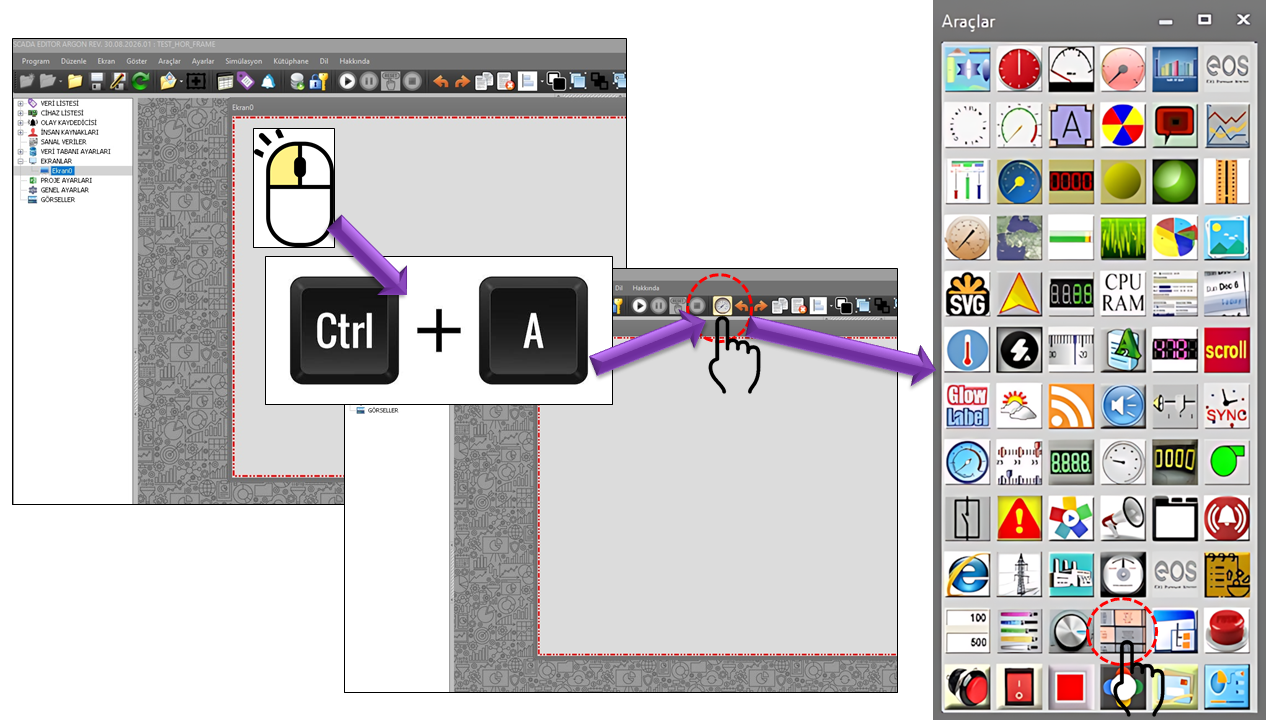
ANNUNCIATOR is a User Control type in EOS SCADA used to visually present alarm and status information. As with conventional industrial annunciator panels, its primary purpose is to clearly and quickly draw the operator's attention to abnormal process or equipment conditions.
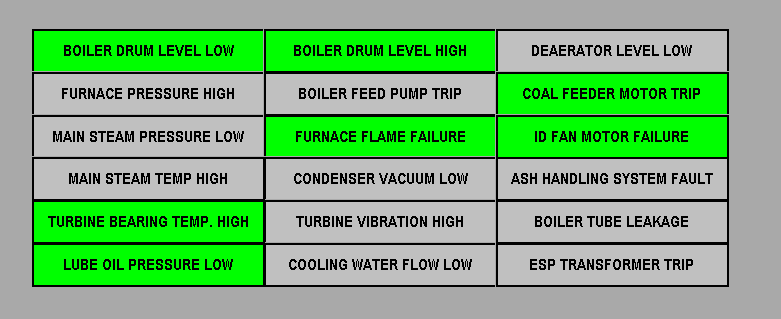
In industrial applications, annunciator systems are used to indicate process alarms, equipment faults, high/low values, auxiliary system statuses, and critical operating conditions. Traditional systems may use illuminated windows and audible alerts, while SCADA/HMI systems can implement the same approach through on-screen colors, text, and animation behavior. citeturn0search0turn0search3
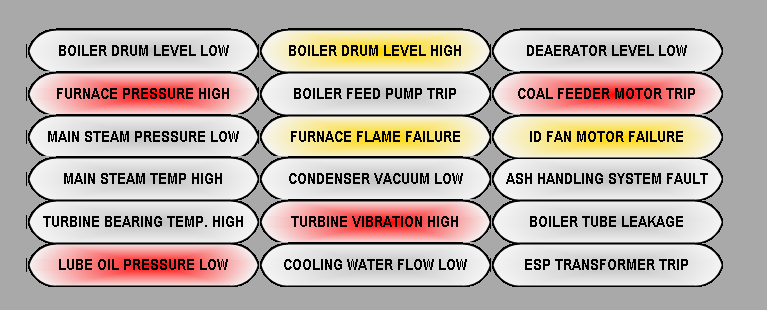
In EOS SCADA, messages for the ANNUNCIATOR control can be defined across four separate lines. Lower, middle, and upper limit values can be used for alarm levels. Different conditions can be visually distinguished using four separate button colors and four separate text colors.
An important feature of ANNUNCIATOR is that it is not merely a
passive alarm indicator. Among the available AlarmType
options is Commandwithmultipleread, which supports
sending commands. Therefore, the user authorization level at which
the control may be used during operation must also be considered
through AuthorizationLevel.
Basic principle: ANNUNCIATOR can notify operators of alarm conditions through colors, text, and visual animations. Depending on the selected operating type, it can also include command functionality. Multiple ANNUNCIATOR controls can be arranged side by side or vertically to create an alarm matrix or equipment status panel.
ANNUNCIATOR configuration can be approached by first defining the basic control properties, followed by its shape and border, visual background, messages, alarm behavior, colors, and finally the authorization level.
The basic operating and appearance characteristics of the ANNUNCIATOR control are defined by the following general parameters.
Property table: Each row includes the technical property name, its EOS Turkish equivalent, default value, purpose, and typical application.
| Property | EOS Turkish Equivalent | Default | Purpose | Where It Is Used |
|---|---|---|---|---|
UCType |
Control Type | ANNUNCIATOR |
Defines the User Control type within EOS SCADA. | When defining the basic type of an ANNUNCIATOR control. |
UpdateInterval |
Update Interval | 1000 ms |
Specifies the control's update interval. | On screens where alarm and status information is refreshed periodically. |
DecimalPoint |
Decimal Places | 0 |
Specifies the number of decimal places used when displaying numerical values. | When displaying alarm limits or numerical status information. |
UCBackColor |
Control Background Color | Transparent |
Specifies the control's primary background color. | To maintain visual consistency between ANNUNCIATOR and the SCADA screen. |
UCForeColor |
Control Foreground Color | Black |
Specifies the control's primary foreground and text color. | To configure the appearance of general text. |
UCFont |
Control Font | Arial Narrow, 9.75 pt, Bold |
Specifies the primary font used on the control. | To adjust the readability of alarm and status messages. |
ANNUNCIATOR can generate visual alerts, such as blinking, when
alarm conditions occur. The timing of the blinking behavior is
specified by BlinkInterval.
| Property | EOS Turkish Equivalent | Default | Purpose | Where It Is Used |
|---|---|---|---|---|
BlinkInterval |
Blink Interval | 500 ms |
Specifies the timing interval for blinking behavior. | To make alarm conditions visually prominent. |
The Shape property defines the geometric appearance
of the ANNUNCIATOR control on the screen. Different shapes can
be used to visually distinguish alarm groups or equipment
statuses.
| Property | EOS Turkish Equivalent | Default | Purpose | Where It Is Used |
|---|---|---|---|---|
Shape |
Shape | Rectangle |
Defines the geometric shape of the ANNUNCIATOR. | To determine the visual form of alarm indicators on the screen. |
The available options for the Shape property are
listed below using their technical names from the source code.
| Option | English Description |
|---|---|
Rectangle |
Rectangle |
Roundedrectangle |
Rounded Rectangle |
Diamond |
Diamond |
Ellipse |
Ellipse |
Linedown |
Downward Line |
Linehorizontal |
Horizontal Line |
Lineup |
Upward Line |
Linevertical |
Vertical Line |
Triangleup |
Upward Triangle |
Triangledown |
Downward Triangle |
Triangleleft |
Left-Pointing Triangle |
Triangleright |
Right-Pointing Triangle |
Ballonne |
Northeast Balloon |
Ballonse |
Southeast Balloon |
Ballonnw |
Northwest Balloon |
Ballonsw |
Southwest Balloon |
Custompolygon |
Custom Polygon |
Custompie |
Custom Pie |
Border properties define the visual boundary surrounding the ANNUNCIATOR's alarm indication. Width, color, and line style can be configured independently.
| Property | EOS Turkish Equivalent | Default | Purpose | Where It Is Used |
|---|---|---|---|---|
BorderWidth |
Border Width | 2 |
Specifies the width of the control's border. | To make the alarm indicator's visual boundary more prominent. |
BorderColor |
Border Color | Black |
Specifies the color of the control's border. | To visually distinguish the control's outline. |
BorderStyle |
Border Style | Solid |
Specifies the line style of the border. | When designing the appearance of the alarm indicator. |
| Option | English Description |
|---|---|
Dash |
Dashed |
Dashdot |
Dash-Dot |
Dashdotdot |
Dash-Dot-Dot |
Dot |
Dotted |
Solid |
Solid |
Gradient properties allow the ANNUNCIATOR background to transition
between two colors. Whether gradient rendering is enabled is
determined by DrawGradient.
| Property | EOS Turkish Equivalent | Default | Purpose | Where It Is Used |
|---|---|---|---|---|
DrawGradient |
Draw Gradient | false |
Determines whether a gradient background is used. | When a color transition is required in the alarm indicator's background. |
CenterColor |
Center Color | DarkGray |
Specifies the gradient's starting color. | In gradient-based alarm indicators. |
SurroundColor |
Surrounding Color | LightGray |
Specifies the gradient's ending color. | To define the second color in the gradient transition. |
| Property | EOS Turkish Equivalent | Default | Purpose | Where It Is Used |
|---|---|---|---|---|
BackgroundTexture |
Background Texture | "" |
Specifies the texture file to be used in the control's background. | For custom visual designs or to emphasize specific alarm conditions with a texture. |
ANNUNCIATOR supports a default text and four separate message lines. This allows different descriptions for alarm levels or equipment states to be displayed within the same control.
| Property | EOS Turkish Equivalent | Default | Purpose | Where It Is Used |
|---|---|---|---|---|
DefaultText |
Default Text | "" |
Specifies the control's default message text. | For the text displayed when no alarm or special message is present. |
MessageText1 |
Message Text 1 | "" |
Specifies the message text for the first line. | For displaying the first alarm/status message. |
MessageText2 |
Message Text 2 | "" |
Specifies the message text for the second line. | For displaying the second alarm/status message. |
MessageText3 |
Message Text 3 | "" |
Specifies the message text for the third line. | For displaying the third alarm/status message. |
MessageText4 |
Message Text 4 | "" |
Specifies the message text for the fourth line. | For displaying the fourth alarm/status message. |
Alarm settings determine how ANNUNCIATOR behaves during alarm conditions and which thresholds are used to distinguish between alarm states.
| Property | EOS Turkish Equivalent | Default | Purpose | Where It Is Used |
|---|---|---|---|---|
AlarmType |
Alarm Type | Coloronoff |
Defines the visual or command behavior of ANNUNCIATOR during alarm conditions. | When selecting color changes, text changes, blinking, border animation, vibration, or command behavior. |
AlarmLowerLimit |
Lower Alarm Limit | 50 |
Specifies the lower threshold for alarm conditions. | When defining the lower alarm level. |
AlarmMidLimit |
Middle Alarm Limit | 75 |
Specifies the middle threshold for alarm conditions. | When defining the middle alarm level. |
AlarmUpperLimit |
Upper Alarm Limit | 100 |
Specifies the upper threshold for alarm conditions. | When defining the upper alarm level. |
The AlarmType selection determines how ANNUNCIATOR
behaves during an alarm condition. In particular, the
Commandwithmultipleread option indicates that the
control can include command functionality, so it must be
considered together with the authorization settings.
| Option | English Description |
|---|---|
Commandwithmultipleread |
Write with Multiple Reads |
Annunciatorwithmultipleread |
Annunciator with Multiple Reads |
Simpleannunciator |
Simple Annunciator |
Coloronoff |
Color Change |
Textonoff |
Text Change |
Colorandtextonoff |
Color and Text Change |
Blink |
Blinking |
Animatedborder |
Animated Border |
Vibrate |
Vibration |
Four different button colors can be used to visually distinguish different alarm or status levels in ANNUNCIATOR.
| Property | EOS Turkish Equivalent | Default | Purpose | Where It Is Used |
|---|---|---|---|---|
ButtonColor1 |
Button Color 1 | Lime |
Specifies the button color for the first state. | For the first alarm/status level. |
ButtonColor2 |
Button Color 2 | Yellow |
Specifies the button color for the second state. | For the second alarm/status level. |
ButtonColor3 |
Button Color 3 | Orange |
Specifies the button color for the third state. | For the third alarm/status level. |
ButtonColor4 |
Button Color 4 | Red |
Specifies the button color for the fourth state. | For a high-priority alarm/status level. |
| Property | EOS Turkish Equivalent | Default | Purpose | Where It Is Used |
|---|---|---|---|---|
TextColor1 |
Text Color 1 | Black |
Specifies the text color for the first message. | When displaying the first status message. |
TextColor2 |
Text Color 2 | Black |
Specifies the text color for the second message. | When displaying the second status message. |
TextColor3 |
Text Color 3 | Black |
Specifies the text color for the third message. | When displaying the third status message. |
TextColor4 |
Text Color 4 | Black |
Specifies the text color for the fourth message. | When displaying the fourth status message. |
| Property | EOS Turkish Equivalent | Default | Purpose | Where It Is Used |
|---|---|---|---|---|
ButtonTactResetTime |
Button Touch Reset Time | 100 ms |
Specifies the reset interval following a button touch. | For ANNUNCIATOR button/command behavior. |
AuthorizationLevel specifies the authorization level
required to use the control. Since some ANNUNCIATOR alarm types
can send commands, this setting is important not only for visual
access but also for operational safety.
| Option | English Description |
|---|---|
None |
No Authorization |
Monitor |
Monitoring |
Operation |
Operation |
Engineering |
Engineering |
Superuser |
Superuser |
Default value:
Monitor
Use with commands: For ANNUNCIATOR configurations that can send commands, the user's authorization level must be selected to match the control's intended operational purpose.
ANNUNCIATOR controls can be arranged side by side or one above another on the screen. This makes it possible to display multiple alarm conditions for a single piece of equipment, or alarm conditions for different pieces of equipment, in an organized block layout on the same screen.
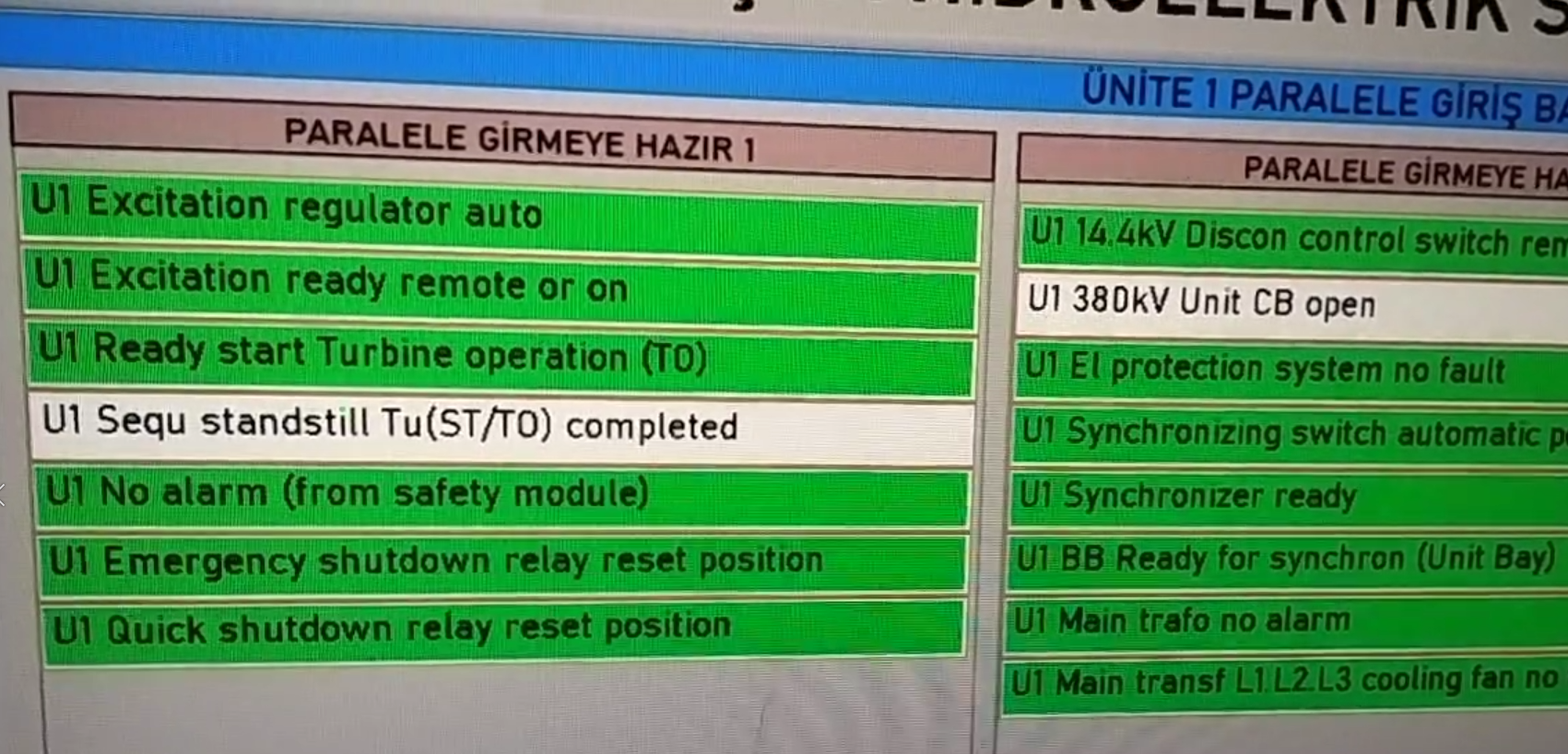
Recommended use: Display alarm conditions for critical equipment in separate ANNUNCIATOR blocks, and standardize color, message, and shape selections according to alarm priority.
ANNUNCIATOR 01  →  PUMP-01 FAULT
ANNUNCIATOR 02  →  PUMP-02 FAULT
ANNUNCIATOR 03  →  FAN-01 FAULT
ANNUNCIATOR 04  →  HIGH TEMPERATURE
ANNUNCIATOR 05  →  LOW PRESSURE
ANNUNCIATOR 06  →  COOLING WATER ALARM
This approach can provide a visual layout that makes alarm conditions easier to scan quickly, particularly on control room screens.
The following examples illustrate how the ANNUNCIATOR properties described above can be configured together.
A simple alarm example in which a pump fault is indicated using a red color and blinking behavior:
Shape          = Rectangle
AlarmType      = Blink
BlinkInterval  = 500
ButtonColor4   = Red
TextColor4     = Black
MessageText4 = "PUMP-01 FAULT"An example in which lower, middle, and upper limits are distinguished using different colors:
AlarmLowerLimit = 50
AlarmMidLimit   = 75
AlarmUpperLimit = 100

ButtonColor1    = Lime
ButtonColor2    = Yellow
ButtonColor3    = Orange
ButtonColor4 = RedAn example showing how the alarm type and authorization level can be configured together for an ANNUNCIATOR with command functionality:
AlarmType          = Commandwithmultipleread
AuthorizationLevel = Operation| Group | Key Properties |
|---|---|
| General |
UCType,
UpdateInterval,
DecimalPoint,
UCBackColor,
UCForeColor,
UCFont
|
| LED |
BlinkInterval
|
| Shape |
Shape
|
| Border |
BorderWidth,
BorderColor,
BorderStyle
|
| Gradient |
DrawGradient,
CenterColor,
SurroundColor
|
| Texture |
BackgroundTexture
|
| Text |
DefaultText,
MessageText1,
MessageText2,
MessageText3,
MessageText4
|
| Alarm |
AlarmType,
AlarmLowerLimit,
AlarmMidLimit,
AlarmUpperLimit
|
| Button Colors |
ButtonColor1,
ButtonColor2,
ButtonColor3,
ButtonColor4
|
| Text Colors |
TextColor1,
TextColor2,
TextColor3,
TextColor4
|
| Button |
ButtonTactResetTime
|
| Authorization |
AuthorizationLevel
|
ANNUNCIATOR is a configurable User Control in EOS SCADA that can communicate alarm and status information to operators quickly and visually using shape, color, text, limits, and animation features.
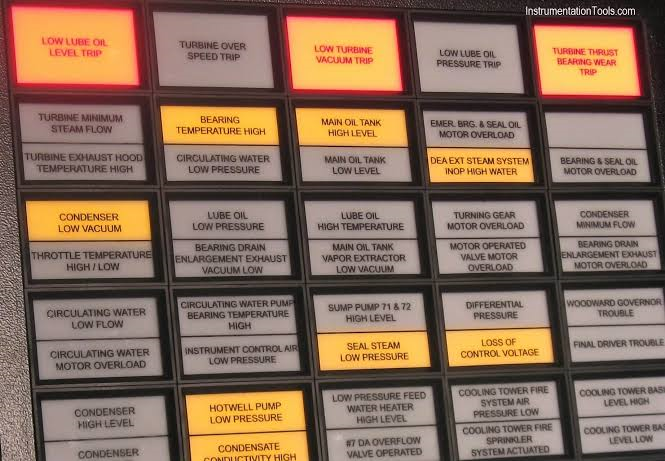
With four message lines, four button colors, and four text colors, different alarm levels or equipment states can be distinguished within the same control. Arranging multiple ANNUNCIATOR controls side by side or vertically makes it possible to create screen layouts similar to an alarm matrix.
Because ANNUNCIATOR can support alarm types that send commands, the AuthorizationLevel property is particularly important. When visual alarm indication and operational commands can be handled within the same control, the authorization level must be considered as part of the operational design.
Documentation standard: The property names on this page are the technical names from the EOS SCADA source code provided by the user. ENUM values have been preserved in their original English technical form; their English descriptions are based on the corresponding EOS terminology and ENUM explanations.
Free Software Download Center
Software for industrial data collection, monitoring, and analysis.

Technical Support
Software documentation, sample code, and practical technical information.
You can contact us regarding EOS software, technical documentation, or industrial data communication.