DUYURU2024
Use DUYURU2024 for systems that use the Firebird 2.5 database platform.
MANAGE YOUR EOS SCADA ANNOUNCEMENTS FROM A SINGLE LOCATION
The ANNOUNCEMENT PANEL Management Program was developed to create, edit, delete, and save announcements to the database for publication through the DUYURUPANELI user control in EOS SCADA.
Announcements prepared with the management program can be read by EOS SCADA Runtime through the shared database and published in the Announcement Panel on the SCADA screen.

When the program starts, active announcements are listed. Users can create a new record by selecting an announcement type and date, select an existing announcement from the list and edit its text, or delete an announcement that is no longer needed.
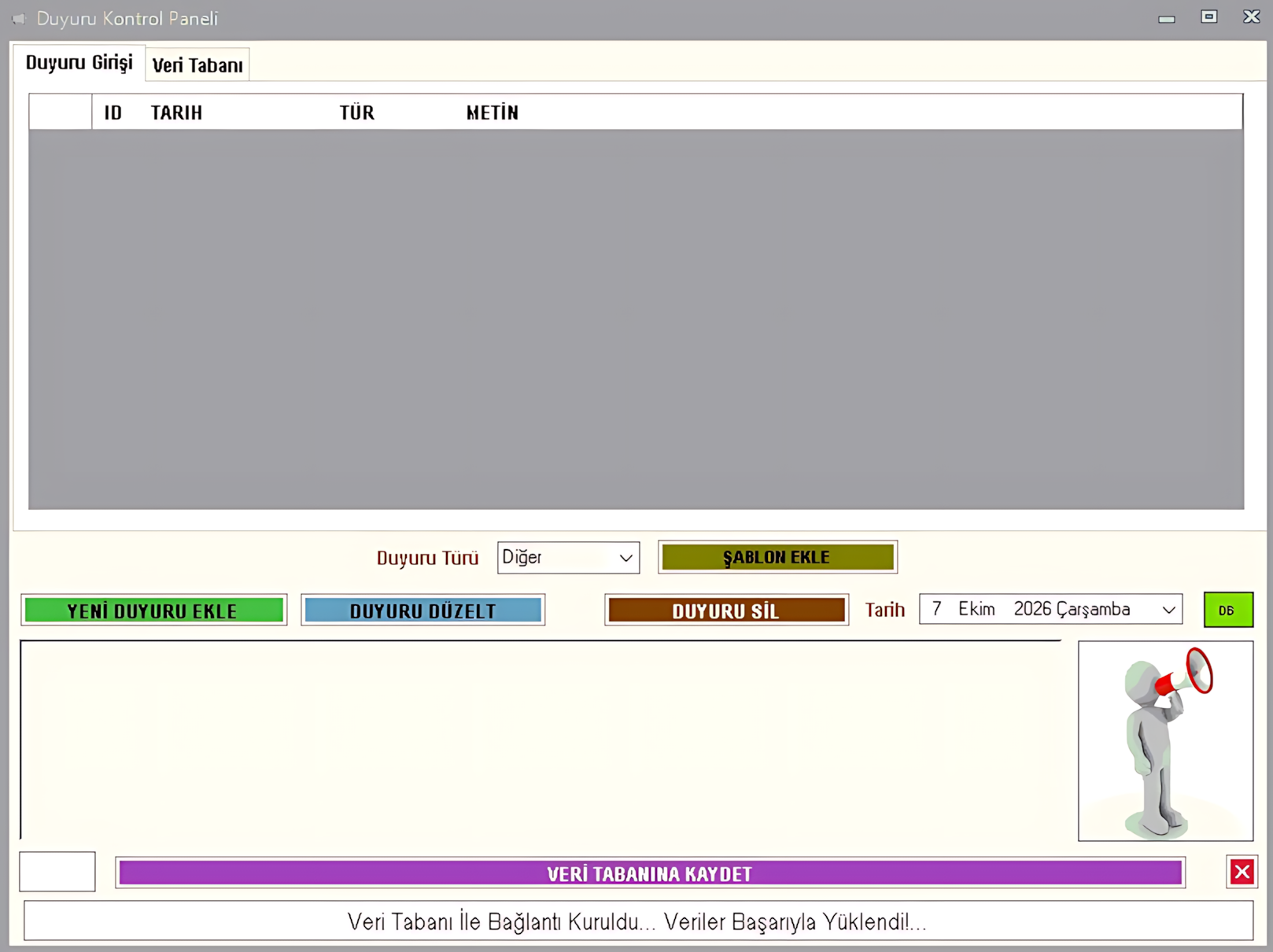
After all changes have been completed, the latest version of the list is transferred to the database using SAVE TO DATABASE. Once this operation is complete, the new announcements become active.
| ID | DATE | TYPE | ANNOUNCEMENT TEXT |
|---|---|---|---|
| 1 | 07.10.2026 | Celebration | ... |
| 2 | 08.10.2026 | Occupational Safety | ... |
| 3 | 15.10.2026 | Operational Message | ... |
The ANNOUNCEMENT PANEL management program is available in two versions, depending on the Firebird database version in use. The management program and the Firebird version used by the database must be compatible.
Use DUYURU2024 for systems that use the Firebird 2.5 database platform.
Use DUYURU2026 for systems that use the Firebird 5.0 database platform.
When the management program starts, the existing active announcements appear in the list at the top. This list is the primary workspace for managing announcements.
| Field | Description |
|---|---|
| ID | The identifier of the announcement record in the database. |
| DATE | The selected date on which the announcement is valid. |
| TYPE | Indicates the category to which the announcement belongs. |
| ANNOUNCEMENT TEXT | The content the user wants to publish. |
When you click an announcement row in the list, the corresponding record is loaded into the text editing area below. This allows you to edit the content of an existing announcement.
First, select the announcement type.
Specify the date to be used for the announcement.
Write or edit the announcement text in the NOTEPAD-like area at the bottom.
Click the Add New Announcement button to add the announcement to the list.
Click the announcement row you want to edit in the list at the top. The announcement text is transferred to the editing area below. After editing the text, click the Edit Announcement button to update the record in the list.
Select the announcement you want to delete from the list at the top, then click the Delete Announcement button. The corresponding record is removed from the announcement list.
After completing all additions, deletions, and edits, be sure to click SAVE TO DATABASE. This operation saves the final version of the list to the database, and the new announcements become active from that point onward.
Announcements can be categorized according to their purpose. The announcement types available for selection in the program are listed below.
Used for staff marriage announcements and marriage-related news intended to be shared within the organization.
Used to announce births involving personnel or employees of the organization.
Used to communicate news of a death within the organization.
Used for occupational health and safety warnings, reminders, and information.
Enables the publication of messages celebrating achievements, special occasions, anniversaries, and similar events.
Used for information about daily facility activities, operations, and general updates for employees.
Can be used for internal announcements about items, equipment, or other products offered for sale.
Used to share internal listings for rental homes, business premises, or similar properties.
Used to announce lost property or similar missing-item reports.
Used for staff birthdays and similar birthday celebrations.
Used for retirement announcements, farewell messages, and other internal communications related to retirement.
Can be used for any general announcement that does not fall into the categories above.
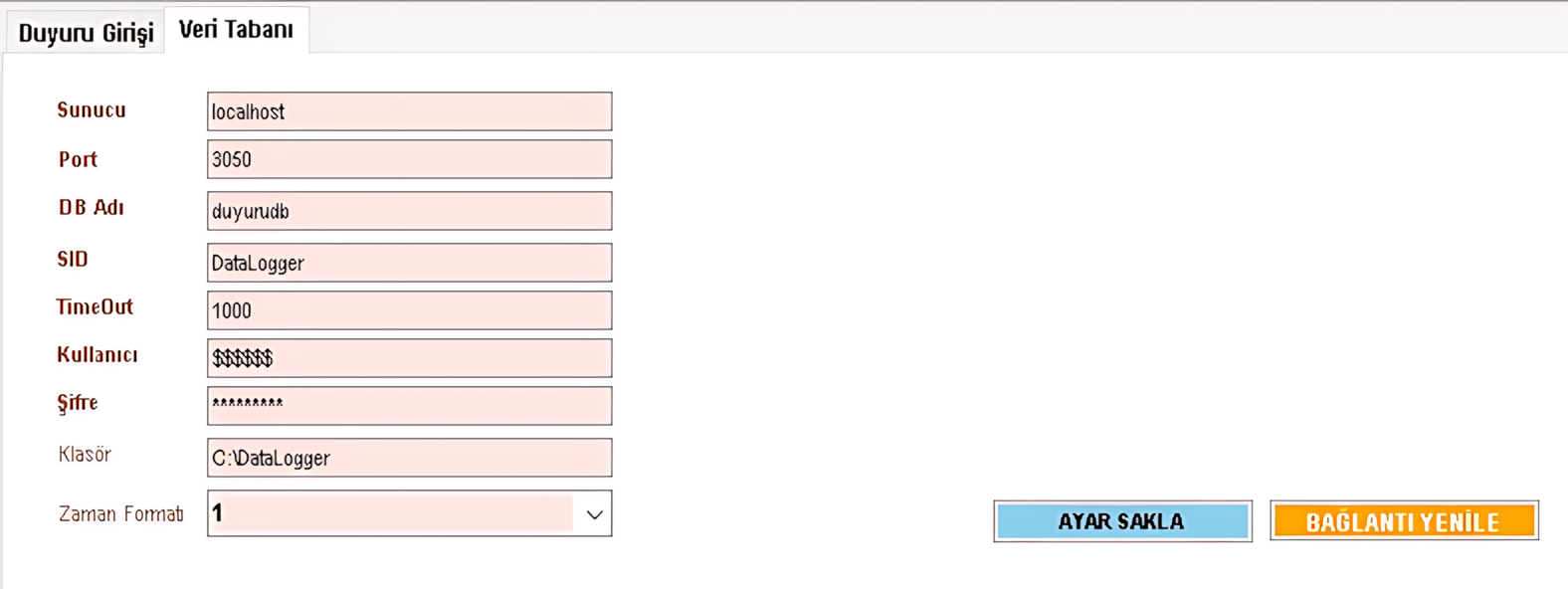
Database connection settings can be configured by switching to the Database Settings tab in the management program. This section is particularly important for systems that use a centralized database over a network.
The announcement database must be located where it can be accessed by both the ANNOUNCEMENT PANEL Management Program and EOS SCADA Runtime. Network and database settings must be configured to meet this requirement.
If the database is hosted on another computer, make sure access to that computer through port 3050 is enabled. The network security firewall, Windows Firewall, and relevant network rules must be configured to allow this access.
It is not sufficient for the management program alone to connect to the database. SCADA Runtime must also be able to access the same database; otherwise, announcements prepared in the management program cannot be used on SCADA screens.
This means the management program can access the database and a connection has been established.
The database location, network access, port, firewall, or connection settings need to be checked.
The ANNOUNCEMENT PANEL Management Program is the tool used to prepare and manage announcements. The DUYURUPANELI user control within EOS SCADA displays these announcements to users on SCADA screens.
With the EOS SCADA ANNOUNCEMENT PANEL Management Program, you can manage important internal messages, occupational safety announcements, special occasions, and other information through a single database. After saving changes in the management program, correctly configuring shared database access is essential to ensure that SCADA Runtime can use the announcements.

Free Software Download Center
Software for industrial data collection, monitoring, and analysis.

Technical Support
Software documentation, sample code, and practical technical information.
You can contact us regarding EOS software, technical documentation, or industrial data communication.