Temperature Setpoint
Can be used to prepare a target temperature value sent to a controller for furnaces, heaters, HVAC systems, or process temperature control.
EOS SCADA • KNOB • ROTARY ADJUSTMENT CONTROL • USER CONTROL
KNOB is a traditional user control that allows the desired setpoint to be selected using a rotary knob for a process or equipment parameter on an EOS SCADA screen.
The user turns the knob to set the value; the selected value is not written directly to the controller. To apply the change, the user must select the APPLY command from the context menu opened with the right mouse button. Therefore, KNOB is not merely an indicator but also a control interface capable of writing data to the controller.

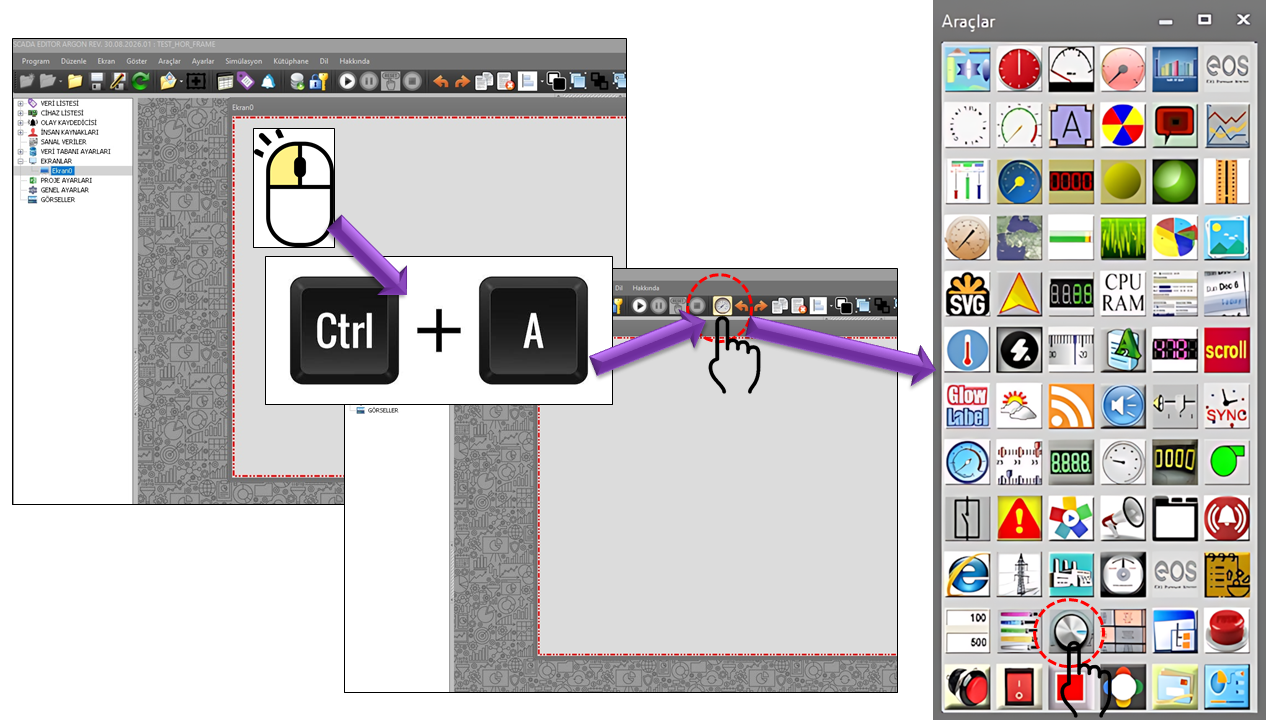
KNOB can be considered the SCADA screen equivalent of a conventional rotary adjustment knob found on physical devices. The operator changes the knob position to select a target value. The second step in the control's design, the APPLY operation, transfers the prepared value to the controller.
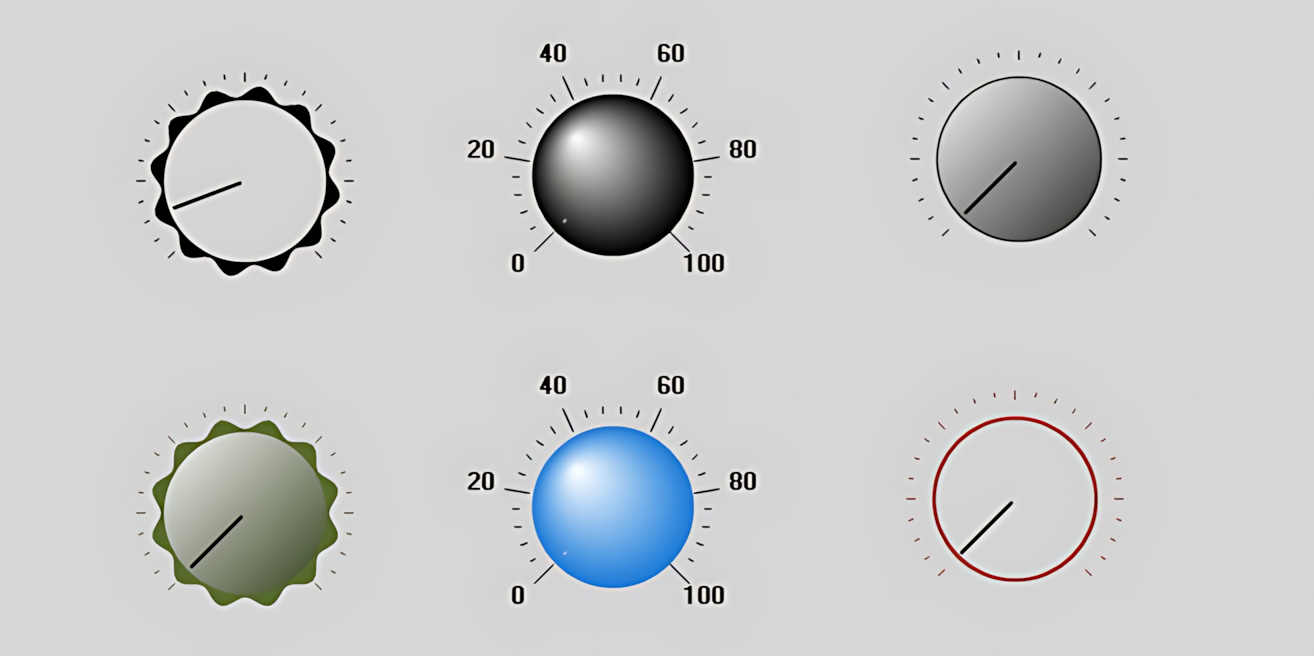
This distinction is particularly important: Changing the value on the KNOB and changing the field device/PLC value are not the same operation. The user first prepares a setpoint and then explicitly selects the APPLY command to request that the value be written.
Rotate → Select the setpoint → Select the APPLY command → Write to the controller. This structure provides a two-step user interaction that prevents minor accidental mouse movements from directly writing to a process parameter.
In the KNOB control, rotation performed by the user is treated as a setpoint selection operation. The selected setting is activated through the APPLY command in the context menu opened with the right mouse button.
Because the KNOB control involves writing data to the controller, AuthorizationLevel must not be treated as an ordinary visual property. The user authorization level permitted to perform the APPLY operation should be determined according to project operating rules and equipment safety requirements.
Can be used to prepare a target temperature value sent to a controller for furnaces, heaters, HVAC systems, or process temperature control.
Can be used to select a target speed or rotational speed for motors, fans, pumps, or similar equipment.
Can provide an interface for controlled adjustment of an operator-configurable setpoint in a PID control loop.
Can be used to select and apply a process parameter whose permissible range is restricted by the PLC or controller.
Using rotary controls for setpoint or parameter selection is a common human-machine interaction approach in industrial HMIs. For example, Siemens documentation describes temperature setpoint adjustment using a rotary knob, while Beckhoff documentation explains value adjustment scenarios using a rotary encoder.
The KnobType property provides two visual options. These options can be used to create different visual presentations of the same basic adjustment function.
| Enumeration Value | English Description | Explanation |
|---|---|---|
Type1 |
Type 1 | The first KNOB visual type. |
Type2 |
Type 2 | The second KNOB visual type. |
When choosing between the two types, consider not only their appearance but also the visual hierarchy established with other control elements on the SCADA screen and how quickly operators can recognize the control.
The KNOB adjustment behavior is configured through the MinValue, MaxValue, MaxAngle, SmallChange, and LargeChange properties. These properties determine the operating range of the rotary knob and the increments used when changing its value.
| Property | EOS English Description | Default | Function |
|---|---|---|---|
MinValue |
Minimum Value | 0 |
Defines the minimum adjustable value. |
MaxValue |
Maximum Value | 100 |
Defines the maximum adjustable value. |
MaxAngle |
Maximum Angle | 270 |
Defines the maximum rotation angle used by the KNOB. |
SmallChange |
Small Change | not specified | Defines the small value adjustment increment. |
LargeChange |
Large Change | not specified | Defines the larger value adjustment increment. |
| Property | EOS English Description | Default | Function |
|---|---|---|---|
KnobBorderType |
Knob Border Type | Ribbedborder |
Defines the appearance of the KNOB border. |
KnobRadius |
Knob Radius | 48 |
Defines the radius of the KNOB. |
KnobColor |
Knob Color | Black |
Defines the main color of the rotary knob. |
BodyStyle |
Body Style | Raised |
Defines the visual style of the KNOB body. |
BorderWidth |
Border Width | 3 |
Defines the border width. |
PointerColor |
Pointer Color | Black |
Defines the color of the pointer indicating the selected value position. |
PointerWidth |
Pointer Width | 2 |
Defines the pointer width. |
PointerStyle |
Pointer Style | Dotsunken |
Defines the visual type of the pointer. |
Scale and tick mark displays can be used to help operators read the value range on the KNOB. This is particularly useful for quickly identifying the approximate position of the setpoint.
| Property | EOS English Description | Default | Function |
|---|---|---|---|
TickVisible |
Tick Visible | true |
Determines whether tick marks are displayed. |
ScaleDisplay |
Scale Display | true |
Determines whether the scale is displayed. |
TickMajorColor |
Major Tick Color | Black |
Defines the color of major tick marks. |
TickMidColor |
Middle Tick Color | Black |
Defines the color of intermediate tick marks. |
TickMinorColor |
Minor Tick Color | Black |
Defines the color of minor tick marks. |
| Property | EOS English Description | Default | Function |
|---|---|---|---|
HeaderText |
Header Text | "" |
Defines the header text associated with the KNOB. |
TextKnobRelation |
Text-Knob Relationship | Textaboveknob |
Defines the relative positions of the header text and the KNOB. |
WarningMessage |
Warning Message | "" |
Defines the warning message displayed to the user. |
For a KNOB that writes values to a controller, the warning message can remind users of the potential process impact of changing a parameter. The message content should be determined according to the project requirements and equipment operating procedures.
AuthorizationLevel is a critical property that determines permission to use the KNOB. This is because one of the control's primary functions is writing data to the controller through the APPLY command.
| Enumeration Value | English Description | Meaning for KNOB |
|---|---|---|
None |
No Authorization | Permission to use the control is not granted. |
Monitor |
Monitoring | Access level intended for monitoring purposes. |
Operation |
Operation | Authorization level defined for operational use. |
Engineering |
Engineering | Authorization level defined for engineering use. |
Superuser |
Superuser | The highest user authorization level. |
AuthorizationLevel should not be considered merely a setting that determines who can view the screen. Because the APPLY operation can write a value to the controller, incorrect authorization may lead to an unintended process parameter change. Therefore, the authorization level should be evaluated together with user roles, equipment criticality, operating procedures, and controller-side restrictions.
An important KNOB design principle is that the value prepared by rotating the knob must not yet be considered written to the controller. Until the APPLY command is selected, the user interaction remains in the setpoint preparation stage.
The KNOB is rotated and the target value is changed.
The operator selects the desired setpoint.
The operator explicitly issues the apply command from the right-click context menu.
The actual process effect of the value depends on its implementation in the controller.
| Property | EOS English Description | Default | Function |
|---|---|---|---|
UCType |
Control Type | KNOB |
Defines the type of the user control. |
UpdateInterval |
Update Interval | 1000 |
Defines the update interval of the control. |
DecimalPoint |
Decimal Places | 0 |
Defines the number of decimal places used when displaying numeric values. |
UCBackColor |
Control Background Color | Transparent |
Defines the background color of the control. |
UCForeColor |
Control Foreground Color | Black |
Defines the text color of the control. |
UCFont |
Control Font | Arial Narrow, 8.25 pt, Bold |
Defines the font used for text displayed by the control. |
| Value | English Description |
|---|---|
Flatborder |
Flat Border |
Ribbedborder |
Ribbed Border |
Transparent |
Transparent |
Flatborder3d |
Flat 3D Border |
Ribbedborder3d |
Ribbed 3D Border |
| Value | English Description |
|---|---|
Raised |
Raised |
Raisededge |
Raised Edge |
| Value | English Description |
|---|---|
Dotsunken |
Sunken Dot |
Dotraised |
Raised Dot |
Dot |
Dot |
Linecenter |
Center Line |
Linecustom |
Custom Line |
triangle |
Triangle |
| Value | English Description |
|---|---|
Textaboveknob |
Text Above Knob |
Knobabovetext |
Knob Above Text |
Texttopcenter |
Text at Top Center |
Textbottomcenter |
Text at Bottom Center |
Because the KNOB writes values to the controller, its authorization level should be defined according to the project's security model.
Users should easily understand that preparing a setpoint and actually writing it to the controller are separate operations.
Minimum and maximum values should correspond to the actual operating range permitted by the process.
For critical parameters, WarningMessage can remind users of the potential process impact of changing a value.
KNOB is a user control that brings conventional rotary knob operation into the SCADA environment, allowing operators to prepare a setpoint in a controlled manner and transfer it to the controller using the APPLY command.
The control's most important feature is not simply its rotary knob appearance, but the separation of setpoint preparation from writing to the controller and the ability to protect this write operation through AuthorizationLevel.
Every value that can be changed using the KNOB may affect the process. Therefore, the APPLY operation must be evaluated together with user authorization, controller limits, and operating procedures.

Free Software Download Center
Software for industrial data collection, monitoring, and analysis.

Technical Support
Software documentation, sample code, and practical technical information.
You can contact us regarding EOS software, technical documentation, or industrial data communication.