Process Start
Sending a short trigger command to start a process or automation step.
EOS SCADA • MOMENTARY PUSH BUTTON • PUSH COMMAND • AUTHORIZATION
MOMENTARY PUSH BUTTON is a user control used to send a short-duration command from a SCADA screen to a controller. Its most important feature is that it has only one operating mode: PUSH.
When the button is clicked, 1 or the configured ON value is sent first. After the specified duration or interval, 0 or the configured OFF value is sent.

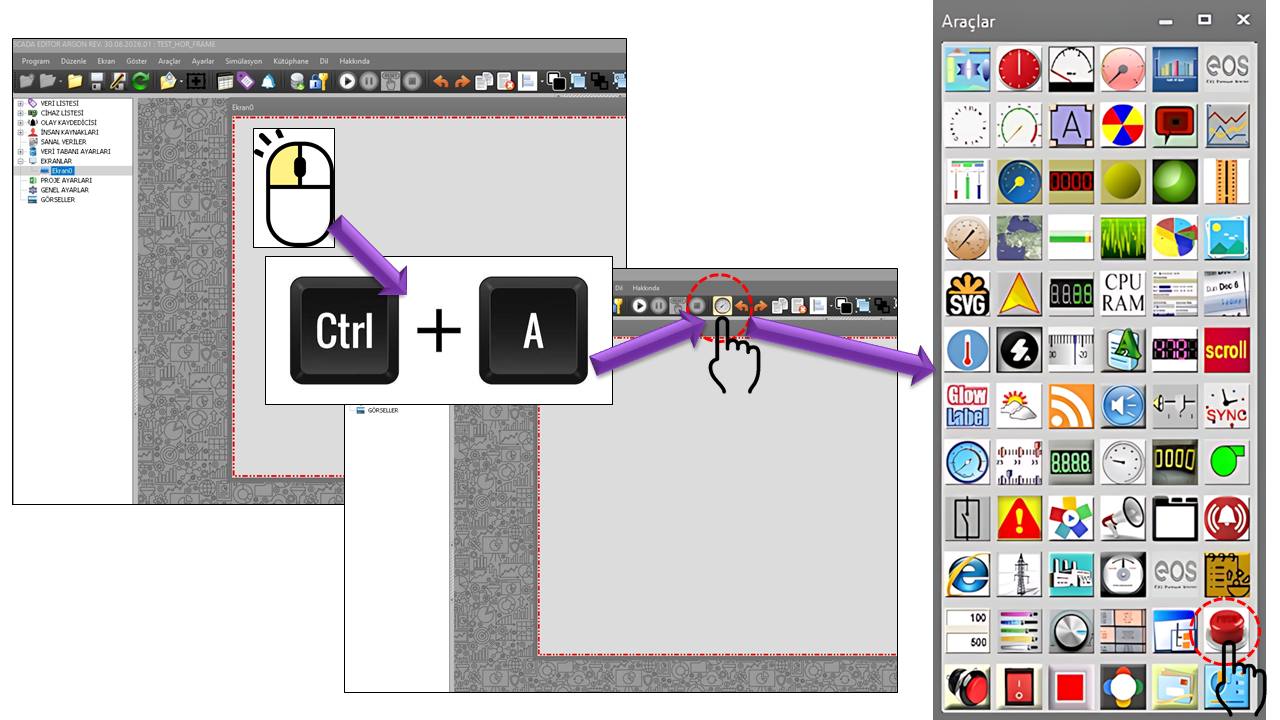
PUSH BUTTON (PUSH_BUTTON) is a user control that sends a command sequence to the controller when the operator clicks a button on the SCADA screen. Its purpose is not to keep a value continuously active, but to generate a short command pulse.
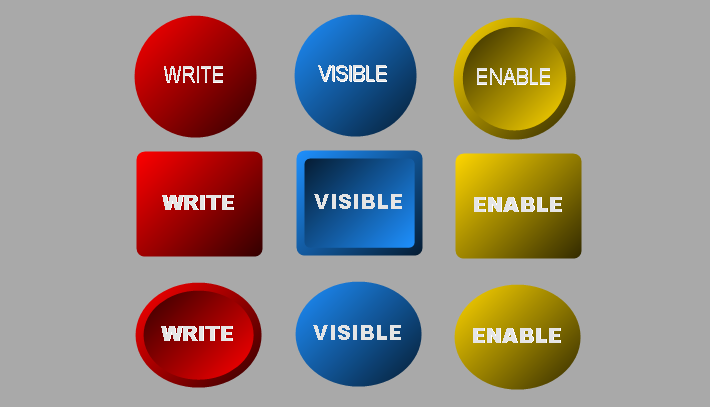
Therefore, PUSH_BUTTON is suitable for SCADA screens where short-duration control commands such as starting, triggering, resetting, acknowledging, or similar operations are issued. The meaning of the command in an actual application is determined by the controller tag connected to the button and the process logic.
Important: PUSH_BUTTON is not a display control. Since it writes data to the controller, incorrect configuration or unauthorized use can affect process behavior. Therefore, authorization and correct tag connections are critical.
PUSH_BUTTON operates only in PUSH mode. This user control does not have a TACT mode. Therefore, TACT behavior, in which the button continuously sends an ON value for as long as the operator holds it down, is not part of this control's operating model.
The button is clicked; first, the ON value is sent, followed by the OFF value after the specified interval. This is the operating mode used by the PUSH_BUTTON control type in the source code.
Behavior that could be described as TACT/Hold-to-Press Button does not belong to this user control. No separate TACT option is provided for PUSH_BUTTON.
PUSH_BUTTON = click → send ON value → wait for the specified interval → send OFF value. The control documentation does not provide a structure for choosing between TACT and PUSH options; PUSH is the only mode available for this control.
The PUSH behavior can be understood in terms of SCADA–controller communication using the following sequence. The ON and OFF values may be 1 and 0, depending on the application configuration; if different values are entered by the user, the same logic applies to those values.
Click → ON value → specified interval → OFF value
Note: The provided PUSH_BUTTON source code does not show a separate time-interval property. Therefore, this page follows the PUSH operating logic specified by the user and does not invent a property name that is absent from the source code.
In industrial HMI software, a common design approach for similar momentary/push buttons is to send different values to the data source for the pressed and released states. Rockwell FactoryTalk View documentation explains that a momentary push button sends State 1 to the data source when pressed and State 0 when released. It also notes that settings such as hold time can be used to prevent very short command pulses from being missed by the data source. citeturn0search0turn0search1
The AuthorizationLevel property is particularly important because PUSH_BUTTON sends commands to the controller. A user's ability to see the button and their ability to operate it must be evaluated separately.
The source code defines five authorization levels. The project design should determine which users are permitted to send commands according to the process risk and the organization's authorization model.
A command sent by an incorrectly authorized user may initiate an unintended operation in the connected controller. WinCC documentation also states that user authorization can be assigned to graphic objects and that users without the appropriate authorization cannot operate those objects. citeturn0search24
Therefore, when PUSH_BUTTON is connected to commands affecting pumps, motors, valves, circuit breakers, production start/stop operations, or other actuators, it must be considered together with appropriate authorization levels, user management, and process safety logic.
The visual state of PUSH_BUTTON can be configured to help the operator distinguish between the normal and pressed states. The source code provides separate text and color fields for the default and pressed states.
| Property | English Equivalent | Default | Description |
|---|---|---|---|
ButtonType |
Button Type | Circular |
Determines the geometric shape of the button. |
ButtonAlpha |
Button Alpha | 20 |
The alpha/transparency value used in the button's appearance. |
ButtonLabelEffect |
Button Label Effect | true |
Determines whether a visual effect is applied to the button label. |
DefaultText |
Default Text | PUSH |
Determines the text displayed in the button's normal state. |
PressedText |
Pressed Text | PUSH |
Determines the text displayed when the button is pressed. |
DefaultButtonColor |
Default Button Color | Red |
The button color in its normal state. |
PressedButtonColor |
Pressed Button Color | Lime |
The button color in its pressed state. |
DefaultTextColor |
Default Text Color | Black |
The text color in the normal state. |
PressedTextColor |
Pressed Text Color | Black |
The text color in the pressed state. |
| Technical Value | English |
|---|---|
Circular |
Circle |
Rectangular |
Rectangle |
Elliptical |
Ellipse |
| Property | English Equivalent | Default | Description |
|---|---|---|---|
UCType |
Control Type | PUSH_BUTTON |
Defines the type of the user control. |
UpdateInterval |
Update Interval | 1000 ms |
Determines the control's default update interval. |
DecimalPoint |
Decimal Places | 0 |
A general numerical display setting. |
UCBackColor |
Control Background Color | Transparent |
Determines the control's background color. |
UCForeColor |
Control Foreground Color | Black |
Determines the control's primary text/foreground color. |
UCFont |
Control Font | Arial Narrow, 42 pt |
Determines the control's primary font. |
LevelThreshold |
Level Threshold | 0.5 |
The level threshold defined in the control's source code. The provided source code does not explain the detailed operating algorithm for this field. |
AuthorizationLevel determines the user's authorization level for operating PUSH_BUTTON. The default value in the source code is Monitor.
| Technical Value | English Equivalent | Description |
|---|---|---|
None |
No Authorization | No authorization level is assigned. |
Monitor |
Monitoring | The default authorization level in the source code. |
Operation |
Operation | Can be used for users at the operation level. |
Engineering |
Engineering | Can be used for users at the engineering level. |
Superuser |
Superuser | The highest authorization level defined in the source code. |
The applications of PUSH_BUTTON depend on the function performed by the connected tag on the controller side. The control itself is not specific to any particular process equipment; its primary function is to send a short-duration command sequence.
Sending a short trigger command to start a process or automation step.
Triggering a reset or restart input defined in the controller.
Triggering operations that require an acknowledgment pulse in a controller or process logic.
Triggering a controller-side input for command logic directed at a motor, pump, valve, or other equipment.
Note: These application examples are not equipment-specific functions derived from the PUSH_BUTTON source code. They illustrate typical uses of short-duration ON/OFF commands in SCADA/HMI environments. Actual process behavior depends on the controller program.
Since PUSH_BUTTON can send commands directly to the controller, it is important to clarify the connection and authorization logic before adjusting the visual settings.
A command-sending user control should be verified in a test environment or as part of a safe commissioning procedure before being connected directly to a real actuator. Correct visual operation of the button does not mean that the command sent to the controller is correct or safe.
PUSH_BUTTON is a user control designed to send short-duration commands to a controller from a SCADA screen, using a single-mode PUSH operating model.
CLICK → ON → WAIT → OFF
Free Software Download Center
Software for industrial data collection, monitoring, and analysis.

Technical Support
Software documentation, sample code, and practical technical information.
You can contact us regarding EOS software, technical documentation, or industrial data communication.