STATIC TEXT
Text defined by ScrollText can be displayed as a scrolling message for announcements, instructions, explanations, operating status, or operator notifications.
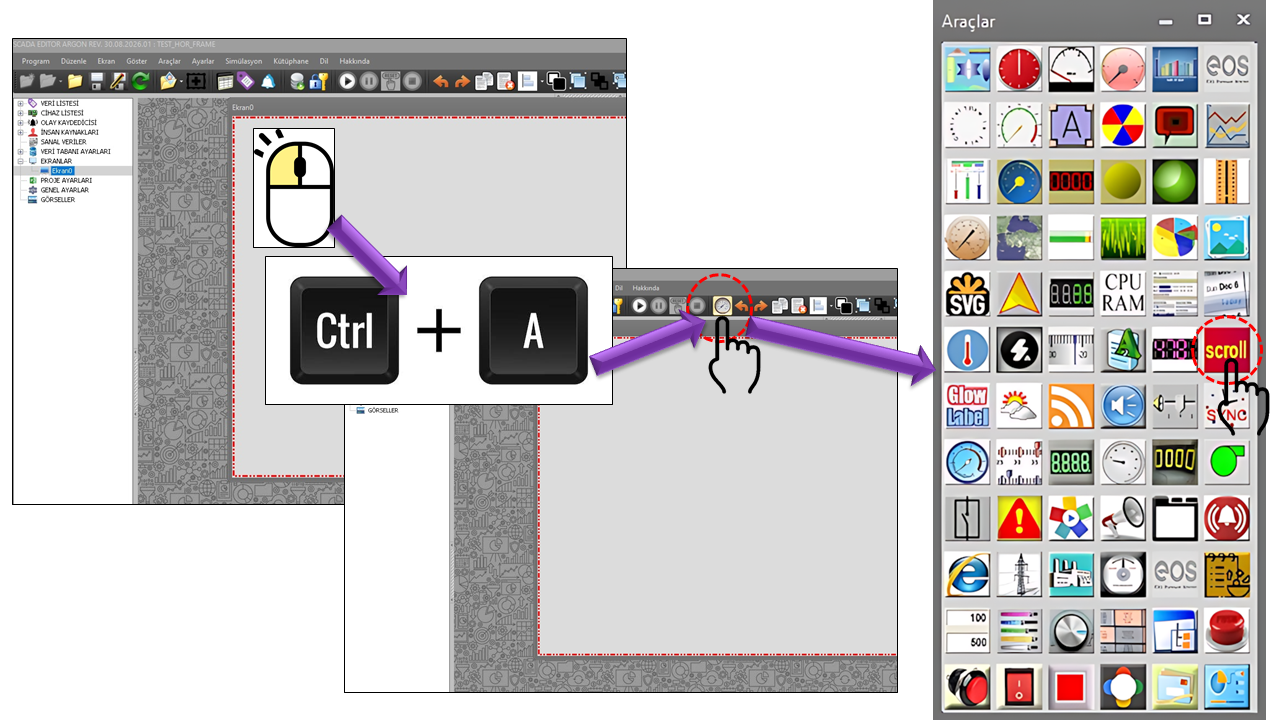
EOS SCADA • SCROLLING_TEXT • SCROLLING TEXT • USER CONTROL
SCROLLING TEXT (SCROLLING_TEXT) is a user control that displays fixed text, a single SCADA data value, or, depending on the configuration, all SCADA data values on a SCADA screen in the form of scrolling text.
The appearance of the information feed on the screen can be customized using properties such as scroll direction, scroll distance, scrolling speed, vertical text position, prefix, and suffix. The visual appearance of the scrolling text can also be configured with optional gradient support.

An example of a scrolling information stream illustrating the basic use of the SCROLLING_TEXT control is shown below.
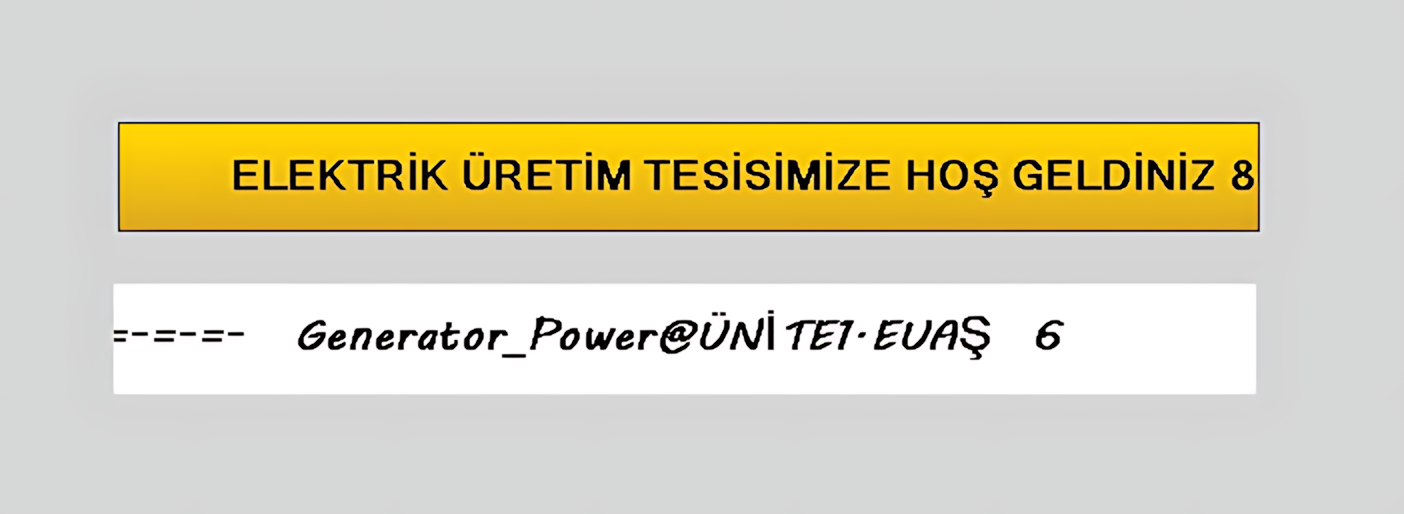
Scrolling Text displays information on a SCADA screen as a continuously moving horizontal text stream.
SCROLLING TEXT SCROLLING_TEXT
The SCROLLING_TEXT user control can be used to present information intended for operators continuously and prominently within a limited display area. The control is not limited to displaying predefined text; it also provides features that allow a single SCADA data point or, depending on the configuration, all SCADA data to be displayed as scrolling text.
Using static text, operators can be provided with explanations, status information, instructions, or informational messages. When SCADA data is used, measurement, status, or process information can be monitored as a continuously moving information line on the screen.
The scrolling direction, speed, and distance can be configured independently. This makes it possible to create different display arrangements for short messages and long information streams containing many data items.
Basic approach: SCROLLING_TEXT transforms information into a horizontally moving text stream rather than keeping it in a fixed area of the screen. This approach is particularly useful when a large amount of information needs to remain visible within a limited screen area.
The SCROLLING_TEXT control can be used in three basic information display modes.
Text defined by ScrollText can be displayed as a scrolling message for announcements, instructions, explanations, operating status, or operator notifications.
A SCADA data point can be displayed within the scrolling text, allowing measurement or status information to be monitored as a continuously moving information line.
When DisplayAllData is enabled, the control is intended to display all SCADA data. This option allows large sets of information to be presented in a single scrolling stream.
Text or SCADA data is prepared by the control, the configured scrolling settings are applied, and the content is presented on the screen as a moving information stream.
The control's basic operation, appearance, and data display behavior are determined by the following properties.
| PROPERTY | EOS ENGLISH EQUIVALENT | DEFAULT | DESCRIPTION |
|---|---|---|---|
UCType |
Control Type | SCROLLING_TEXT | Defines the type of the user control within SCADA. |
UpdateInterval |
Update Interval | 1000 | Specifies the control's data and display update interval. |
DecimalPoint |
Decimal Places | 0 | Specifies the number of decimal places used when displaying numeric SCADA data. |
UCBackColor |
Control Background Color | White | Specifies the control's background color. |
UCForeColor |
Control Text Color | Black | Specifies the control's primary text color. |
UCFont |
Control Font | Arial Narrow, 8.25 pt, Bold | Specifies the font and text style used by the control. |
DisplayBorder |
Display Border | false | Specifies whether a border is displayed around the control. |
BorderColor |
Border Color | Black | Specifies the color used when the border is displayed. |
DisplayAllData |
Display All Data | false | Specifies whether the control is configured to display all SCADA data as scrolling text. |
These properties determine the scrolling direction, movement distance, and speed of the scrolling text.
| PROPERTY | EOS ENGLISH EQUIVALENT | DEFAULT | DESCRIPTION |
|---|---|---|---|
ScrollDirection |
Scroll Direction | Righttoleft | Specifies the direction in which the text moves across the screen. |
TextScrollDistance |
Text Scroll Distance | 1 | Specifies the distance the text advances with each scrolling movement. |
TextScrollSpeed |
Text Scroll Speed | 1 | Specifies the movement speed of the scrolling text. |
This section configures the text to be displayed, its vertical position, and the text to be added at the beginning or end of the content.
| PROPERTY | EOS ENGLISH EQUIVALENT | DEFAULT | DESCRIPTION |
|---|---|---|---|
VerticleTextPosition |
Vertical Text Position | Center | Specifies the vertical position of the text within the control. |
ScrollText |
Scroll Text | TEXT | Specifies the text to be displayed as scrolling text. |
Prefix |
Prefix | Specifies the text to be added at the beginning of the displayed content. | |
Suffix |
Suffix | Specifies the text to be added at the end of the displayed content. |
These settings determine whether a gradient is used in the scrolling text's visual background, as well as the gradient's direction and colors.
| PROPERTY | EOS ENGLISH EQUIVALENT | DEFAULT | DESCRIPTION |
|---|---|---|---|
UseGradient |
Use Gradient | false | Enables or disables the use of a gradient in the control's appearance. |
GradientStyle |
Gradient Style | Horizontal | Specifies the direction in which the gradient is applied. |
GradientColor1 |
Gradient Color 1 | Gold | Specifies the first gradient color. |
GradientColor2 |
Gradient Color 2 | Goldenrod | Specifies the second gradient color. |
Three different options are defined in the source code for the scrolling direction.
| ENUMERATION OPTION | ENGLISH EQUIVALENT |
|---|---|
Righttoleft |
Right to Left |
Lefttoright |
Left to Right |
Bouncing |
Bouncing |
Three different options are defined for the vertical position of the text within the control.
| ENUMERATION OPTION | ENGLISH EQUIVALENT |
|---|---|
Top |
Top |
Center |
Center |
Bottom |
Bottom |
Four gradient direction options are defined: horizontal, vertical, and two diagonal directions.
| ENUMERATION OPTION | ENGLISH EQUIVALENT |
|---|---|
Horizontal |
Horizontal |
Vertical |
Vertical |
Forwarddiagonal |
Forward Diagonal |
Backwarddiagonal |
Backward Diagonal |
SCROLLING_TEXT can be used to present different types of information using the same visual behavior.
A message such as “Maintenance work will begin at 22:00.” can be entered in the ScrollText field to create a continuously visible scrolling notification for the operator.
A process variable can be displayed within the scrolling text to present a continuously moving measurement, for example, “PRESSURE: 7.42 bar”.
DisplayAllData can be used to display multiple SCADA data points in the same scrolling information stream. This arrangement can be useful when presenting large sets of information within a limited screen area.
The status of a pump, motor, valve, or other piece of equipment can be displayed as scrolling text, keeping the information continuously visible to the operator.
The following points should be considered to ensure readability and manage information density on the SCADA screen.
SCROLLING TEXT (SCROLLING_TEXT) is a flexible user control that displays text and process information as a moving information stream on a SCADA screen. Its scrolling direction, distance, speed, vertical position, prefix, suffix, and gradient properties allow the control to be configured for different SCADA screen requirements.

Free Software Download Center
Software for industrial data collection, monitoring, and analysis.

Technical Support
Software documentation, sample code, and practical technical information.
You can contact us regarding EOS software, technical documentation, or industrial data communication.