
Free Software Download Center
Software for industrial data collection,
monitoring, and analysis.
DEFINING ACTION-FUNCTION PAIRS
In EOS SCADA 2023, the operating behavior of user controls can be defined using an Action-Based Structure. In this structure, when specific user or system actions occur, the functions associated with these actions are automatically executed.
This allows user controls to do more than simply display visual data. They can perform different operations depending on user interactions, data changes, and other system events.
In EOS SCADA 2023, an unlimited number of action-function pairs can be defined for each user control. Different functions can be executed for different actions on the same user control, and multiple operations can also be configured for a single action.
By defining action-function pairs, user controls on SCADA screens can dynamically respond to operator actions or changes in SCADA data.

To define an action-function pair for a user control, the required user control must first be selected on the SCADA screen.
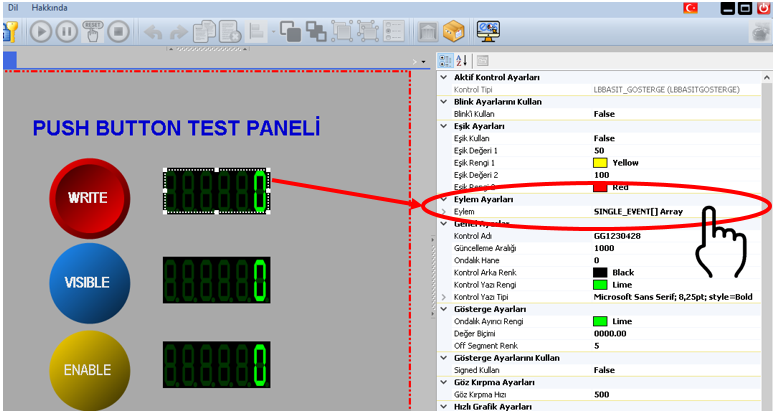
After selecting the user control, click the Action option in the Settings Table on the right side to open the Add Action Panel.
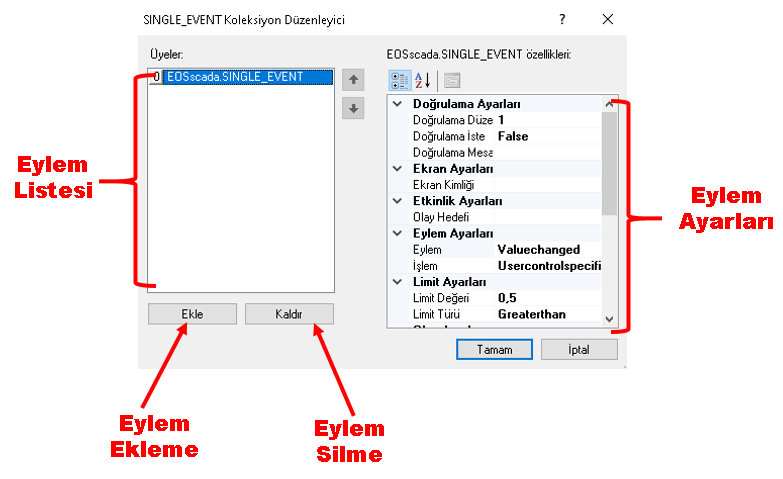
In the opened Add Action Panel, new actions can be created, previously defined actions can be deleted, and the parameters of the selected action can be edited through the Action Settings Table.
Basic approach: In the action-function structure, which event will occur is specified by the ActionEvent field, while which operation will be performed when that event occurs is specified by the Function field.
ActionEvent specifies the type of action that triggers the defined function when it occurs on a user control or within the SCADA system.
Action types include different user or system interactions such as mouse actions, data changes, and software-specific events.
The Function field specifies the operation that EOS SCADA will perform when the defined action occurs.
A wide range of functions can be associated with actions, from normal user control operations and screen navigation to data writing and script execution.
Depending on the selected action and function, different parameters may need to be configured. These parameters determine which screen or data will be used by the action, under which conditions it will execute, and how the operation will be performed.
| Property Name | Property Description | Default Value |
|---|---|---|
| ActionEvent | Action Type | - |
| Function | Action Function | - |
| ScreenID | Screen identifier to be used for navigation | - |
| EventTarget | Action target. Especially used to specify target screens such as Popup screens. | - |
| InputParams | Input parameters for actions such as running scripts and starting programs. | - |
| OutputParams | Output parameters for actions such as running scripts and starting programs. | - |
| TagToOperate | Tag to be used during the action. It can be used for operations such as reading, writing, increasing, decreasing, or comparing values. | - |
| LimitType | Limit type used in conditional actions such as visibility, enable/disable, and blinking. | - |
| LimitValue | Limit value used in conditional actions. | 0.5 |
| DataValue | Data value to be used during the action. A fixed value or the value of another Tag can be used. | 1 |
| DeltaChange | Change amount used when increasing or decreasing a Tag value. | 0.1 |
| UsePulse | Specifies whether Pulse will be used for command actions. | false |
| PulseValue | Value to be used during the Pulse operation. | 0 |
| PulseDelayTime | Delay time of the Pulse operation. | 500 |
| RequestVerification | Specifies whether user verification is required before executing the action. | false |
| VerificationMessage | Verification message displayed to the user during user verification. | - |
| VerificationLevel | Verification level to be used for user verification. | - |
| ButtonParameters | List of parameters to be sent to opened or navigated screens. | - |
LimitType specifies the comparison method used in conditional functions such as Visibleinvisible, Enabledisable, and Blink.
The numerical value used for comparison is specified by the LimitValue parameter. For example, if a user control should become visible when a Tag value is greater than 0.5, an appropriate LimitType and LimitValue can be used together.
In some command actions, a command may need to be triggered for a specific duration or with a specific value. In this case, the UsePulse, PulseValue, and PulseDelayTime parameters can be used.
When UsePulse is set to true, the Pulse operation is enabled. The Pulse value is specified by PulseValue, while the delay interval of the Pulse operation is specified by PulseDelayTime.
When Pulse is used, sending the PulseValue command to the Controller is repeated at PulseDelayTime intervals for as long as the action remains active.
Default values: UsePulse = false, PulseValue = 0, and PulseDelayTime = 500.
User verification can be used to prevent critical commands or operations from being executed accidentally.
When the RequestVerification parameter is enabled, the user is asked for verification before the action is executed. The VerificationMessage field specifies the message displayed to the user, while the VerificationLevel field specifies the verification level to be used.
Especially for user controls that send commands to field equipment, the use of a user verification mechanism should be considered to prevent commands from being sent accidentally.
In EOS SCADA 2023, there is no limit on the number of action-function pairs that can be defined for each user control.
This allows different functions to be defined for different mouse actions, data changes, or private events on the same user control.
For example, the same user control can be configured to open one screen when the left mouse button is clicked, execute another function when the right mouse button is clicked, and change its visual properties when its data changes.
Important: The ability to define an unlimited number of action-function pairs allows user controls to be adapted to a wide range of operational scenarios. However, it is recommended that actions defined on complex screens be structured in an organized and understandable manner.
In order for a user control to perform its normal data visualization function, the Valuechanged - Usercontrolspecific action-function pair must be used.
To send a command to a user-defined target, the Write function must be used together with an appropriate mouse action.
For example: Leftmousedown - Write, Leftmouseup - Write, or another appropriate mouse action can be associated with the Write function.
NOTE: An unlimited number of action-function pairs can be defined for each user control. Each pair can be configured independently with its own action and function parameters.
With the Action-Based Structure of EOS SCADA 2023, the behavior of user controls can be configured according to the actions that occur. The function to be executed when an action occurs is defined through the Action Settings of the relevant user control.
To create an action-function pair, the user control must be selected, the Action option in the Settings Table must be used to open the Add Action Panel, and the ActionEvent and Function values must be specified.
Parameters such as ScreenID, EventTarget, InputParams, OutputParams, TagToOperate, LimitType, LimitValue, DataValue, DeltaChange, and other relevant parameters can be used to determine how the action operates.
With this structure, EOS SCADA user controls can be transformed into functional SCADA components capable of dynamically responding to operator interactions, data changes, conditions, and system events.
Free Software Download Center
Software for industrial data collection,
monitoring, and analysis.

Technical Support
Documentation, sample code, and
application-oriented information
for EOS software.
You can get in touch regarding software, technical content, or collaboration.