
Free Software Download Center
Software for industrial data collection, monitoring, and analysis.
HISTORICAL CHART • LIVE TREND • DATA WAREHOUSE • CHART SETTINGS
The EOS SCADA Runtime Chart Display Panel is an integrated visualization tool that allows data collected in the SCADA system to be displayed as historical charts and enables the creation of real-time live trend charts.
The panel brings together operations such as data selection, date and time range selection, chart zooming, point value inspection, displaying chart data in tabular form, and saving charts in different formats within a single working environment.
The EOS Chart Panel can be accessed through two different user interface options. The panel provides the central workspace for performing chart operations within Runtime.
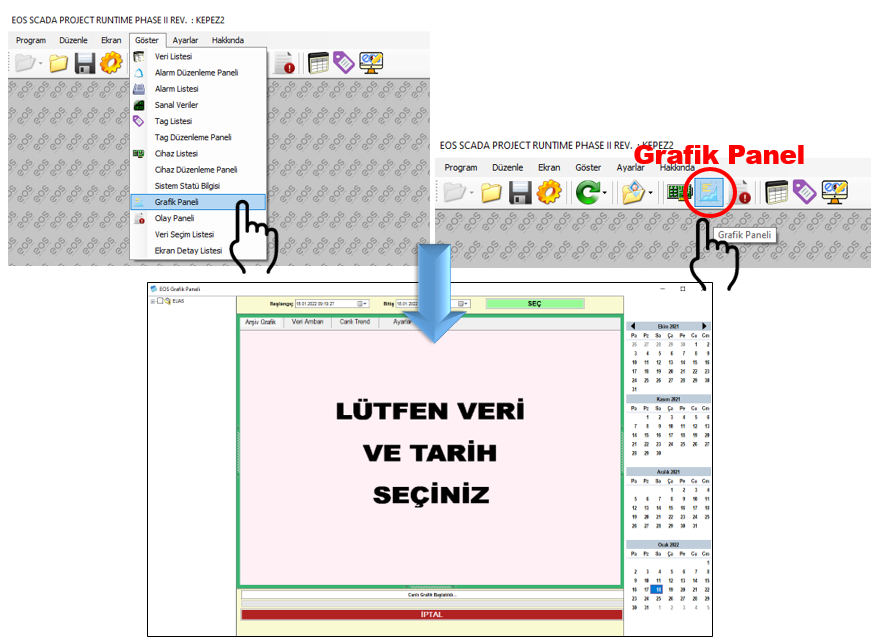
| Access Method | Operation |
|---|---|
| Quick Access Button Bar | Click the CHART PANEL button. |
| VIEW Menu | Click the DATA LIST button. |
Basic usage: To create a chart, select one or more SCADA data items from the tree menu on the left. Then select the date to be processed. If the date is already selected, the chart can be refreshed or recreated by double-clicking with the left mouse button in the chart area.
The EOS Chart Panel has a section-based layout designed to make chart operations quick and easy to understand. Each section supports a different user operation.
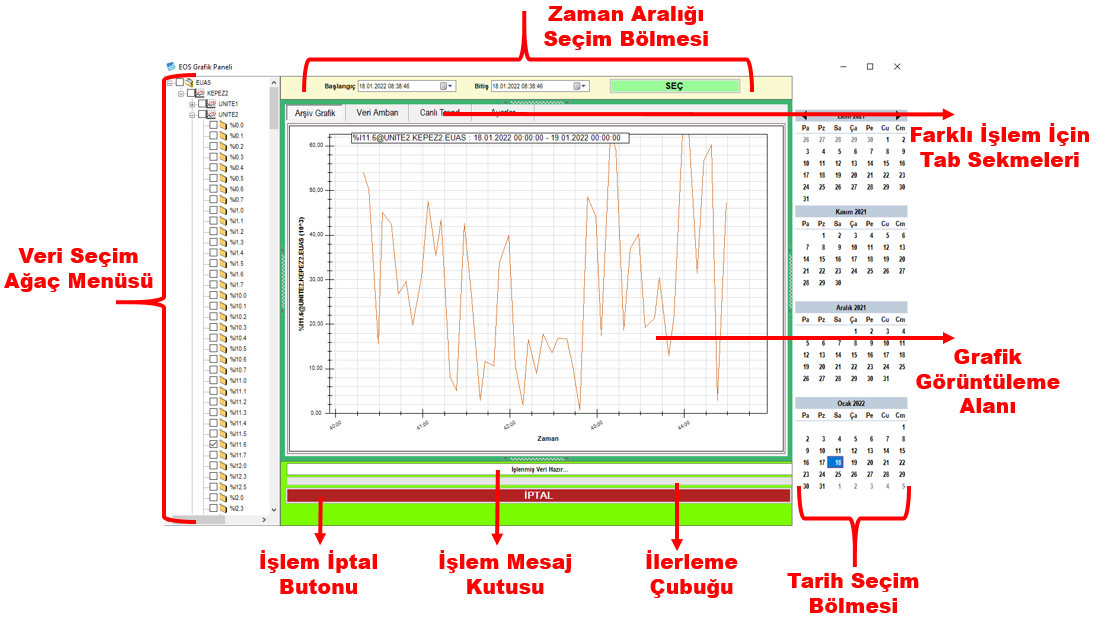
| Area | Primary Function |
|---|---|
| Top Section | Time range selection. |
| Tab Sections | Access to different operations such as charts, live trends, and data viewing. |
| Left Section | Selection of SCADA data through the tree menu. |
| Center Section | Displaying charts and performing operations on the chart. |
| Bottom Section | Monitoring progress status and operation messages. |
| Right Section | Date selection. |
This layout allows data selection, date specification, and chart analysis to be performed from the same workspace.
The EOS Chart Panel allows archived SCADA data to be charted according to a specific date and time range. The user can select the data to be analyzed from the tree menu and create a chart for the selected date.
Multiple data selection: Multiple data items can be selected simultaneously in the tree menu. To clear all selections, right-click the tree menu and use the corresponding status menu.
A specific area of the generated chart can be selected with the mouse to zoom in. This feature is particularly useful for analyzing short-term changes or process behavior within a specific time range in greater detail.
Right-clicking on the chart opens the Chart Status Menu. This menu provides various tools for viewing, saving, printing, and scaling the chart.
| Operation | Description |
|---|---|
| Copy | Copies the chart to the clipboard as an image. |
| Save Image As | Saves the chart in EMF, PNG, GIF, JPEG, TIFF, or BMP format. |
| Page Setup | Allows page settings to be configured before sending the chart to the printer. |
| Sends the chart to the default printer. | |
| Show Point Values | Displays the corresponding point values when the cursor is moved over the chart line. |
| Zoom Out | Returns the chart to the previous zoom level. |
| Undo All Changes | Removes all zoom operations and returns the chart to its initial viewing level. |
| Set Default Scale | Resets the chart scale settings to their default values. |
To examine the numerical values underlying the generated chart in tabular form, the DATA WAREHOUSE tab at the top of the chart display area can be used.
This tab displays the numerical values of the data used in the current chart in table form. The user can export the table as a text-based file using the SAVE AS CSV button.
Practical use: While the chart is used to analyze visual trends, the DATA WAREHOUSE tab allows the numerical values behind the same chart to be examined in detail.
The EOS Chart Panel can be used not only for analyzing historical data, but also as a live chart display. The selected SCADA data can be monitored in real time using the LIVE TREND option available in the tab sections.
The time window for the live chart can be set to one of the following options: Last 10 minutes, Last 30 minutes, Last 1 hour, Last 3 hours, Last 6 hours, Last 12 hours, or Last 1 day.
On the live trend screen, the user can configure the monitoring window and the frequency at which data is refreshed on the screen according to operational requirements. These options allow both rapidly changing processes and longer-term trends to be monitored within the same panel.
| Setting | Options |
|---|---|
| Live chart time range | 10 minutes, 30 minutes, 1 hour, 3 hours, 6 hours, 12 hours, 1 day |
| Chart update frequency | 500 ms, 1 second, 5 seconds, 10 seconds, 30 seconds, 1 minute |
| Number of charts | 1, 2, 4, or 6 charts |
Monitoring approach: Short update intervals allow rapidly changing processes to be monitored more frequently, while longer time windows allow broader trend behavior to be examined on a single screen.
When data or chart configurations need to be changed while the live chart is running, the live chart must first be stopped. The required settings can then be configured on the relevant chart.
The status menu allows data to be added or removed, and all data to be cleared in a single operation so that the live chart options can be reconfigured.
The Settings tab allows the general appearance of charts and the representation of each SCADA data item on the chart to be configured separately.
In the EOS Chart Panel, visual properties such as color, line style, and line width can be configured separately for each SCADA data item. This makes it easier to distinguish multiple process variables on the same chart.
Chart readability: In charts containing multiple data items, configuring the visual properties of each data item separately makes it easier to distinguish trends from one another and interpret process behavior.
Descriptions can also be displayed next to data names in the tree menu containing the SCADA data. To enable this option, use SHOW DESCRIPTIONS from the status menu opened by right-clicking on the tree menu.
Applying the same operation again returns the tree structure to its previous view without displayed descriptions.
The collapsible dividers in the Chart Panel allow unused sections to be temporarily collapsed and the workspace allocated to the chart to be expanded.
This feature is particularly useful in live trend monitoring scenarios. By collapsing unnecessary panels, the user can enlarge the chart area and create a suitable full-screen live chart monitoring environment. The resulting view can be used on any SCADA monitor for continuous monitoring.
Free Software Download Center
Software for industrial data collection, monitoring, and analysis.

Technical Support
Software documentation, sample code, and practical technical information.
You can contact us regarding EOS software, technical documentation, or industrial data communication.